Making Plots
This guide walks you through creating plots for your campaign, as well as some tips on how to make interesting plots that your players will engage with.
Introduction
Plots in table-top gaming are non-linear, player-centric, and dynamic in nature.
As a DM, you are expected to keep your players engaged in a storyline that ebbs and flows between party members, characters, and places in your world.
Allowing the players in your party the freedom to tackle your crafted challenges in the way they choose is all in the spirit of the game. That's why our questing engine is more than a document: your plots are dynamic, and story nodes can be added wherever your party is in your storyline.
If you need help setting up your campaign first, start with Getting Started.
Overview
A Plot is fundamentally a storyline containing a centered motivation, or a problem that needs solving, and ways to get your party's attention. These attention grabbers are called Hooks.
Components
Plot
A game asset in World Wizard, this is the main body or container for your plotline. It contains all hooks in your story, and any notes or content added to it.
Hook
Hooks contain interactivity for your players and characters in your world. They act like nodes that link together in a chain of events.
A Hook can contain a trigger, read-aloud text, a skill check, linked game assets, and information that is only meant for the GM.
GM Notes
A section in each Hook for notes that are GM-only. It's where you can put your secret sauce, safe from the grubby hands of your players.
Document View
Hooks join together to form a cohesive document. Select a Hook to follow that branch of the story and keep what you need for the current session in one place.
Node View
A top-level, visual method for viewing your storylines. This is the best place to get a feel for the shape of a Plot, especially once the party has created a few branches.
New Hook option
Create a new Hook from the current node for the next step in the storyline. You can write the next beat yourself, or give World Wizard a direction and generate it.
Finalize Plot option
Create an end to the current branch of a Plot. The final boss, the recovery, the saving of the town, etc... This is how you document the ending of a plotline without forcing every possible path to end the same way.
Walkthrough
Plot Creation
Plots can be created at the top level of your campaign by navigating to the sidebar and selecting the Plots icon.
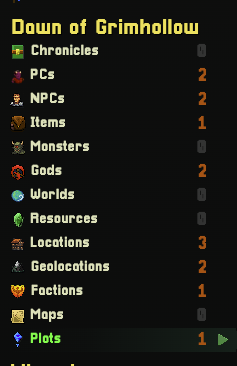
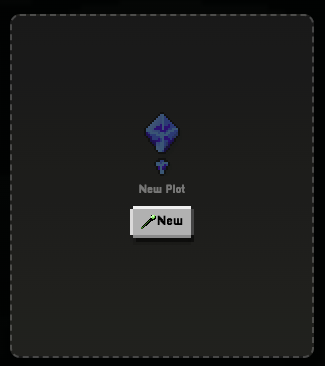
Select View All Plots, then click the New Plot card.
You can also attach a Plot to a game asset for smaller storylines. This is useful when the problem starts with one specific NPC, Location, Item, Faction, or other part of your world.
To attach a Plot to a game asset, select any asset, navigate to the Plots tab, and simply create a new Plot.
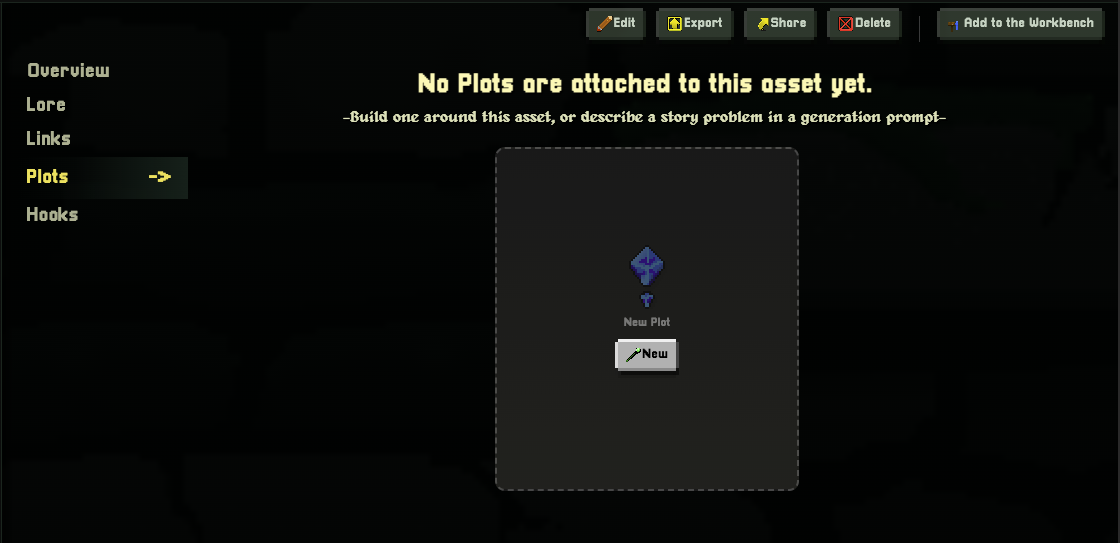
When a Plot is created from another game asset, that asset becomes the center of the Plot and is automatically included in the generation context.
Generating the Plot
The Plot generator gives you three main things to work with:
• Prompt - Describe the problem, motivation, or situation that you want the players to walk into
• Chaos - Move toward Structured for a tighter result, or Chaotic when you want more surprises
• Context - Include the people, places, items, factions, and other game assets that should matter to the storyline
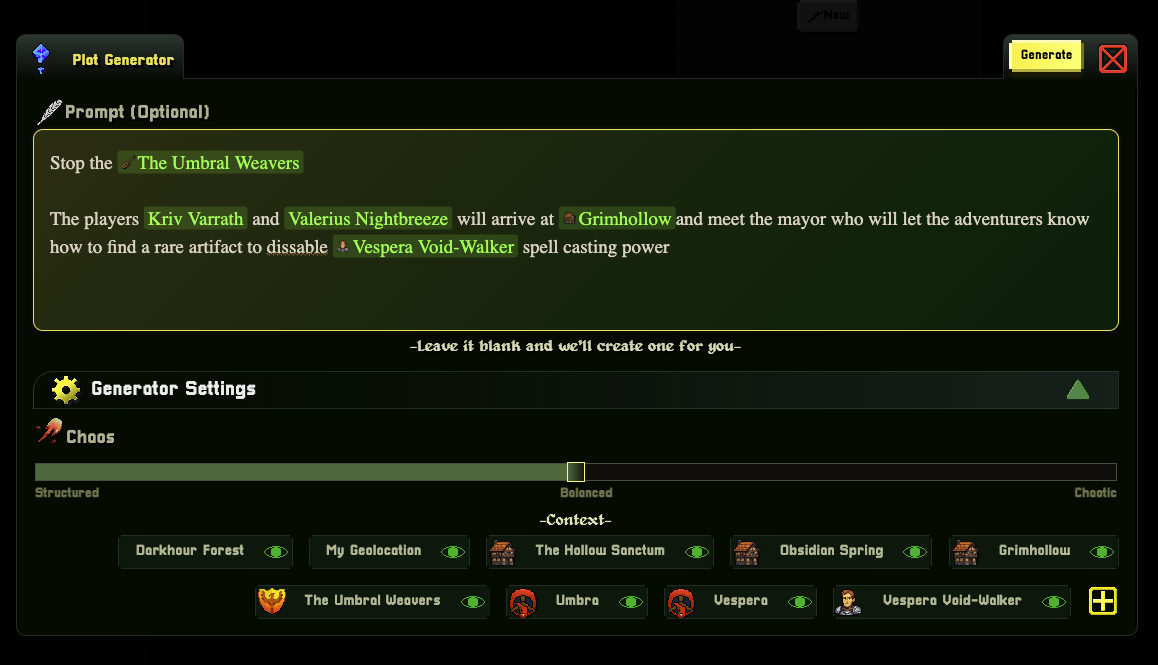
You don't need to write the whole story in the prompt. Give the generator the problem, who is involved, and what the party is trying to accomplish. Let the Hooks hold the different ways that the players might get there.
For example:
> Stop @The Umbral Weavers. The players arrive at @Grimhollow and meet the mayor, who knows how to find a rare artifact that can disable @Vespera Void-Walker's spell.
Use @mentions when a game asset has a specific job in the plot, and use the Context selector when you simply want the generator to know that an asset is relevant.
For a deeper look at the WorkBench, Context selector, and @mentions, see the Context Engine.
You can also leave the prompt blank and World Wizard will create a starting situation for you.
Once you click Generate, your Plot is created with an opening, GM Notes, established facts, open questions, and at least one way to get the party moving.
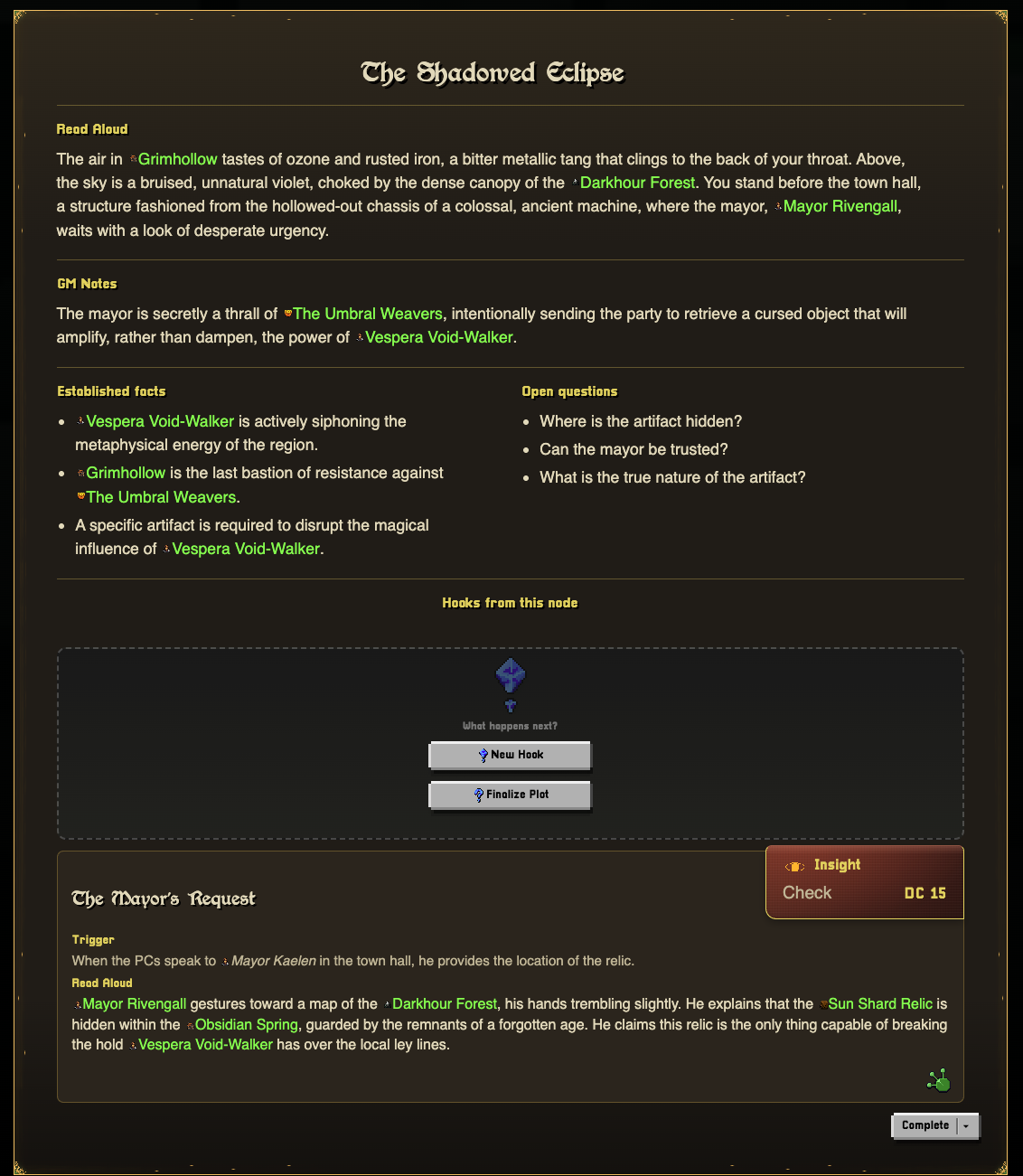
What the Plot Gives You
• Read Aloud - The opening or current story beat that can be given directly to your players
• GM Notes - What is really happening behind the scenes
• Established facts - Things that are already true and should stay consistent
• Open questions - Things that have not been answered yet, giving you room to react to your party
• Hooks from this node - The available ways forward from where the story currently is
You can edit the Plot title, opening, notes, facts, and questions directly from the document. Hover over a section and use the pencil icon to change only that part.
Working With Hooks
The Hooks from this node section shows the next available pieces of your storyline.
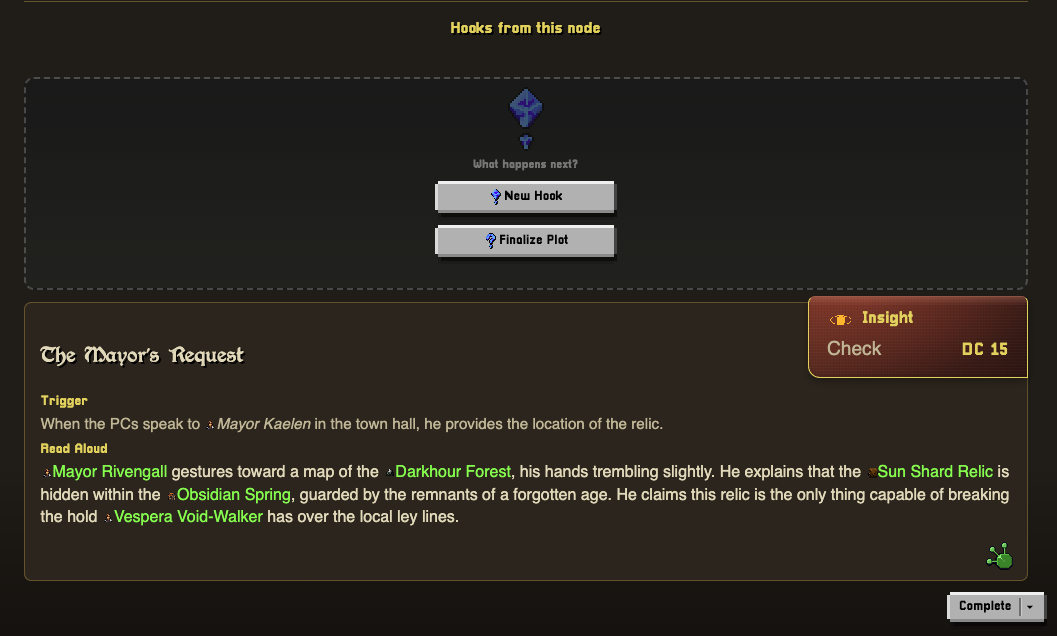
Hooks aren't meant to predict everything your players will do. They give you prepared opportunities that can be moved, ignored, or built upon when the party makes a decision.
Click a Hook to follow that route in Document View. As the party moves through the Plot, use Complete to mark the Hook as resolved. You can also record which PC completed it.
Creating a New Hook
Click New Hook from any node and tell World Wizard what happened next, or what you want to prepare next.
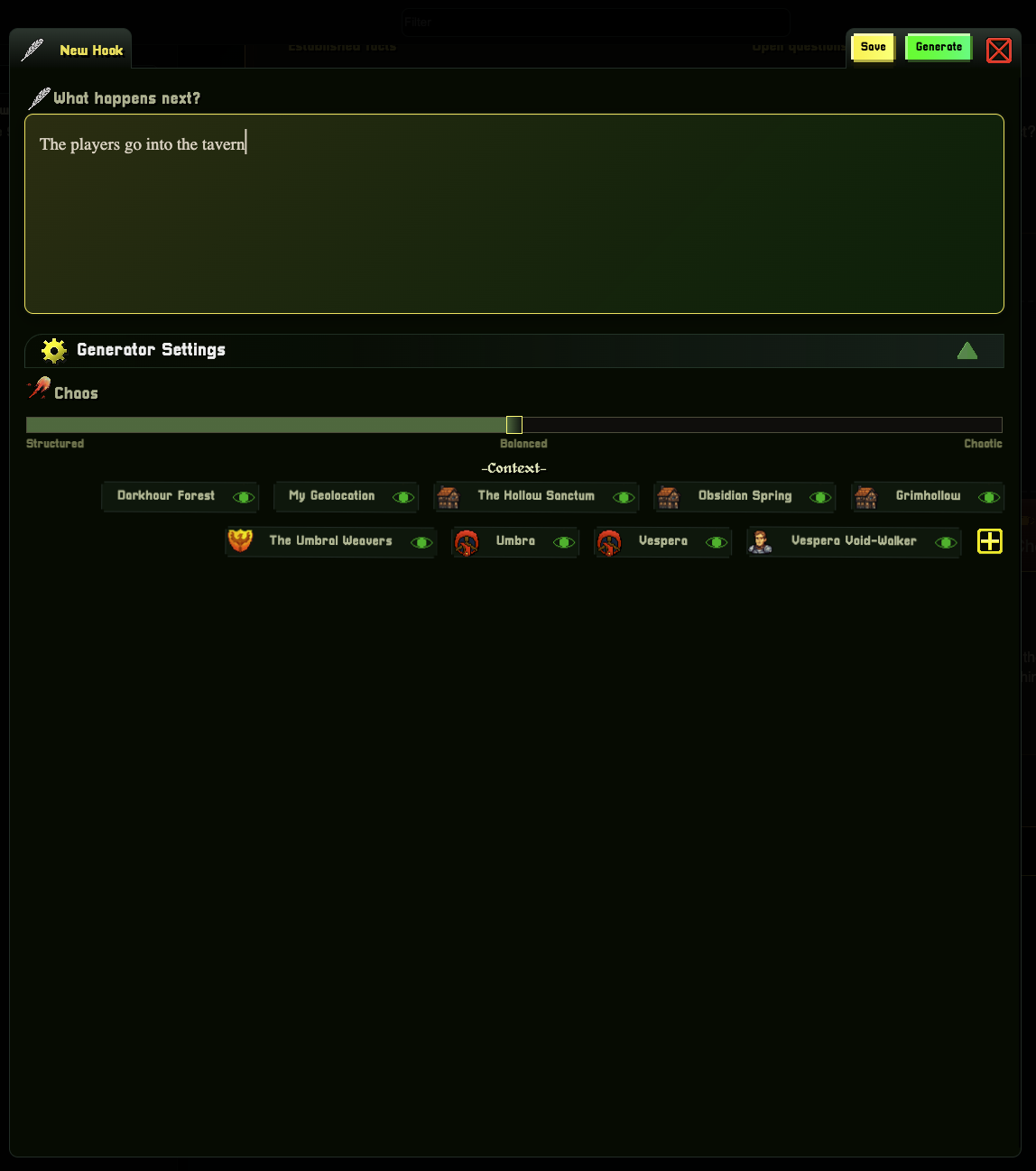
The options at the top give you two ways to add it:
• Save - Add exactly what you wrote as the new Hook
• Generate - Use your direction, Chaos setting, and Context to build out a complete Hook
This is where Plots become useful during play. If the party ignores the mayor and goes into the tavern instead, type that decision into a new Hook and keep the storyline moving from where they actually went.
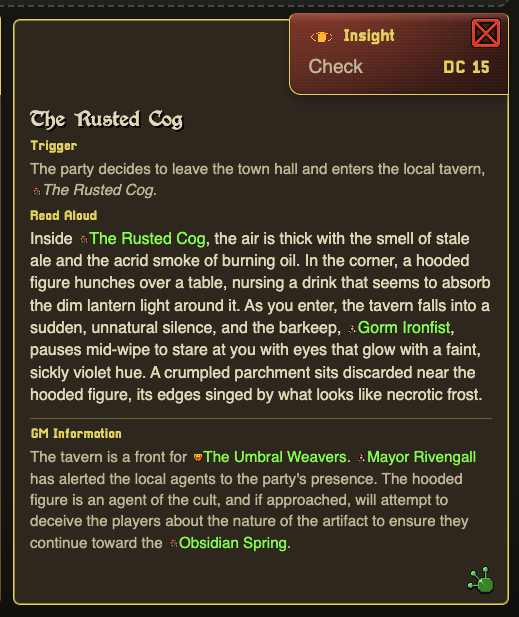
New Hooks use the current contents of your WorkBench as context. Change the eye icons or use the + button before generating if only certain assets should influence what happens next.
Linked Game Assets
Names shown in green are linked game assets. Hover over one to get a quick look without leaving your Plot, or click it to open the full asset.
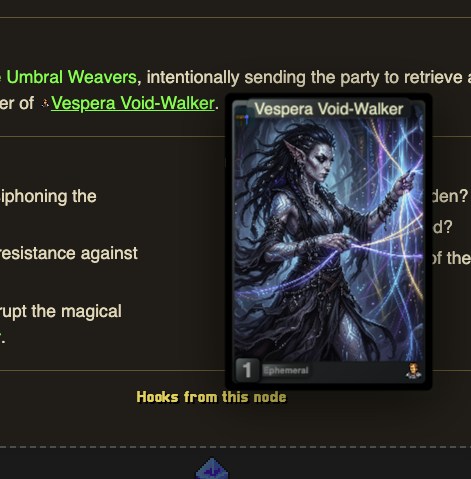
This lets your Plot stay focused on the storyline while the details for NPCs, monsters, locations, and items live where they belong. If you still need to create a character for the Plot, see Making an NPC.
Using Node View
Switch from Document to Node at the top of the Plot to see every branch at once.
Use this view when you want to:
• See where the party's current route sits in the full storyline
• Find branches that have not been explored yet
• Jump to a Hook and return to its place in Document View
• Check that different choices still point toward the centered motivation of the Plot
You can drag the Node View to move around, and zoom when the Plot gets large.
Finalizing a Plot
When the current branch has reached its end, click Finalize Plot and describe how it finishes. You can give the generator a direction, or leave it blank and let the current Plot and Context decide the finale.
A finalized branch becomes an ending node. This keeps the outcome inside the same Plot, beside the choices and Hooks that got the party there.
A Plot with multiple branches can have multiple endings. Finalize the route the players reached, and leave the others open until you know whether they still matter.
Tips for Interesting Plots
1. Start with a problem, not an ending - Know what is wrong in the world, but let your party decide how it gets solved
2. Give every Hook something actionable - A person to speak to, a place to investigate, a danger to face, or a choice to make
3. Keep open questions open - Don't answer everything during generation. Questions give you room to use the ideas your players hand you
4. Use more than one kind of pressure - A villain is useful, but a deadline, a divided faction, or a cost for waiting makes the Plot move
5. Make failure change the story - A failed check should reveal trouble, spend time, or create a new Hook instead of simply stopping the party
6. Build from what the players do - Add the next Hook after the session when possible. Your prep will stay closer to the adventure that is actually happening
7. Keep your context focused - Include the game assets that matter right now. Too much unrelated context can pull the Plot away from its centered motivation