The Context Engine
The Context Engine is what makes World Wizard's generation feel connected — it's the system that takes your existing Game Assets and weaves them into everything you generate. Instead of creating isolated characters, items, and locations, the Context Engine ensures your world builds on itself.
This guide covers how context works, how to use the WorkBench, how to reference assets with @mentions, and how Asset Links tie everything together.
How Context Works
Every generator in World Wizard accepts context — a list of existing Game Assets that the AI should be aware of when creating something new. When you provide context:
1. Your selected assets are summarized and included in the AI prompt
2. The AI references those assets naturally in the generated output
3. Asset Links are created between the new asset and each context asset
4. Inline references use a special link format so assets are clickable in the UI
The more context you provide, the more interconnected and consistent your world becomes.
Context works with every generator — NPCs, Monsters, Items, Gods, Locations, GeoLocations, Cultures, Resources, Quests, and Entries.
The WorkBench
The WorkBench is your persistent context tray. Any Game Asset you add to the WorkBench is automatically included as context whenever you generate something — no need to re-select assets each time.
Adding Assets to the WorkBench
There are two ways to add assets:
From any Asset Card:
1. Open the dropdown menu on any Game Asset card
2. Click "Add to the WorkBench"
The asset now appears in the WorkBench sidebar and will be used as context for all future generations.
From the Generator:
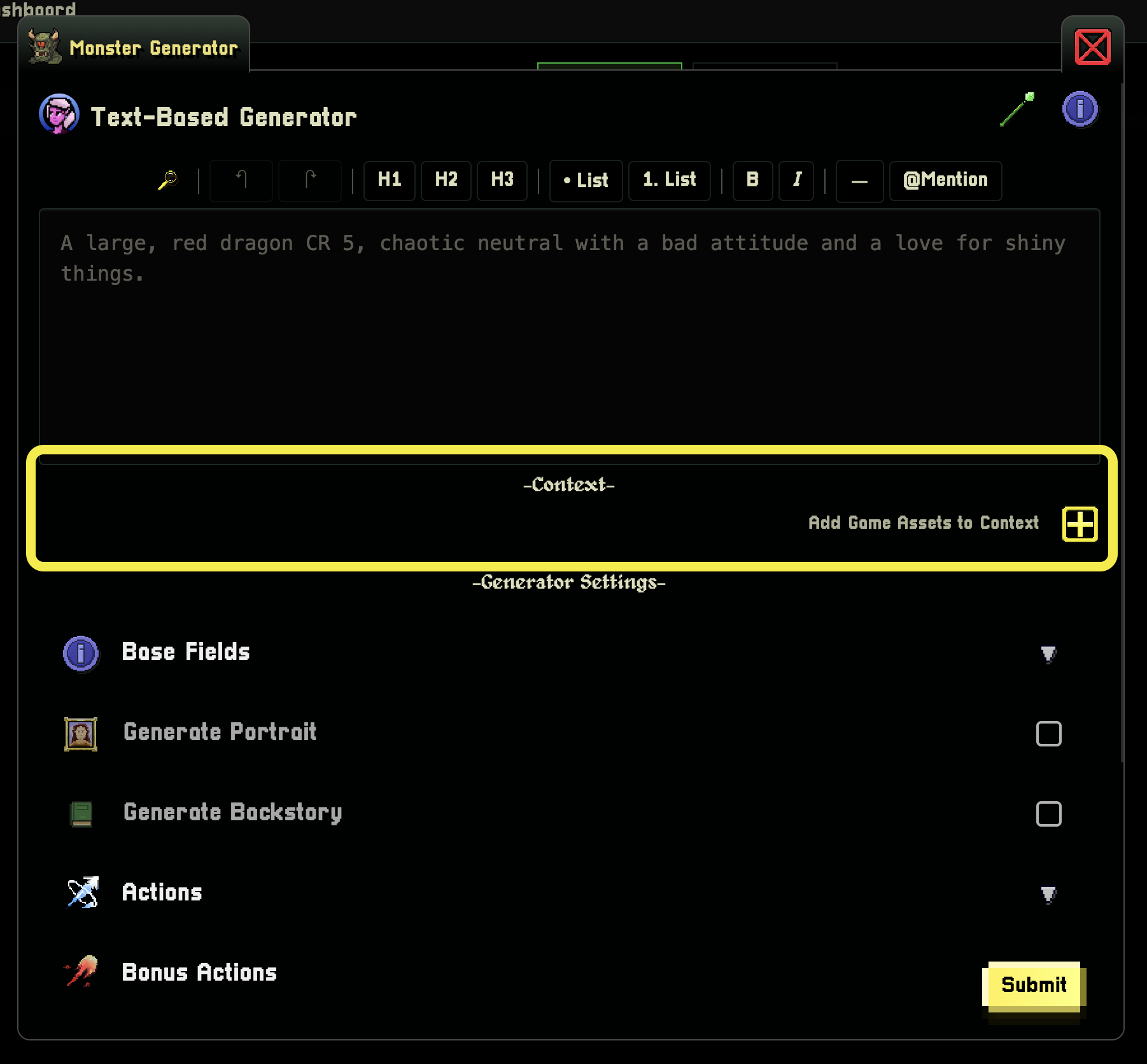
1. Open any generator (NPC, Monster, Quest, etc.)
2. Click the + button in the context section
3. Browse and select the assets you want
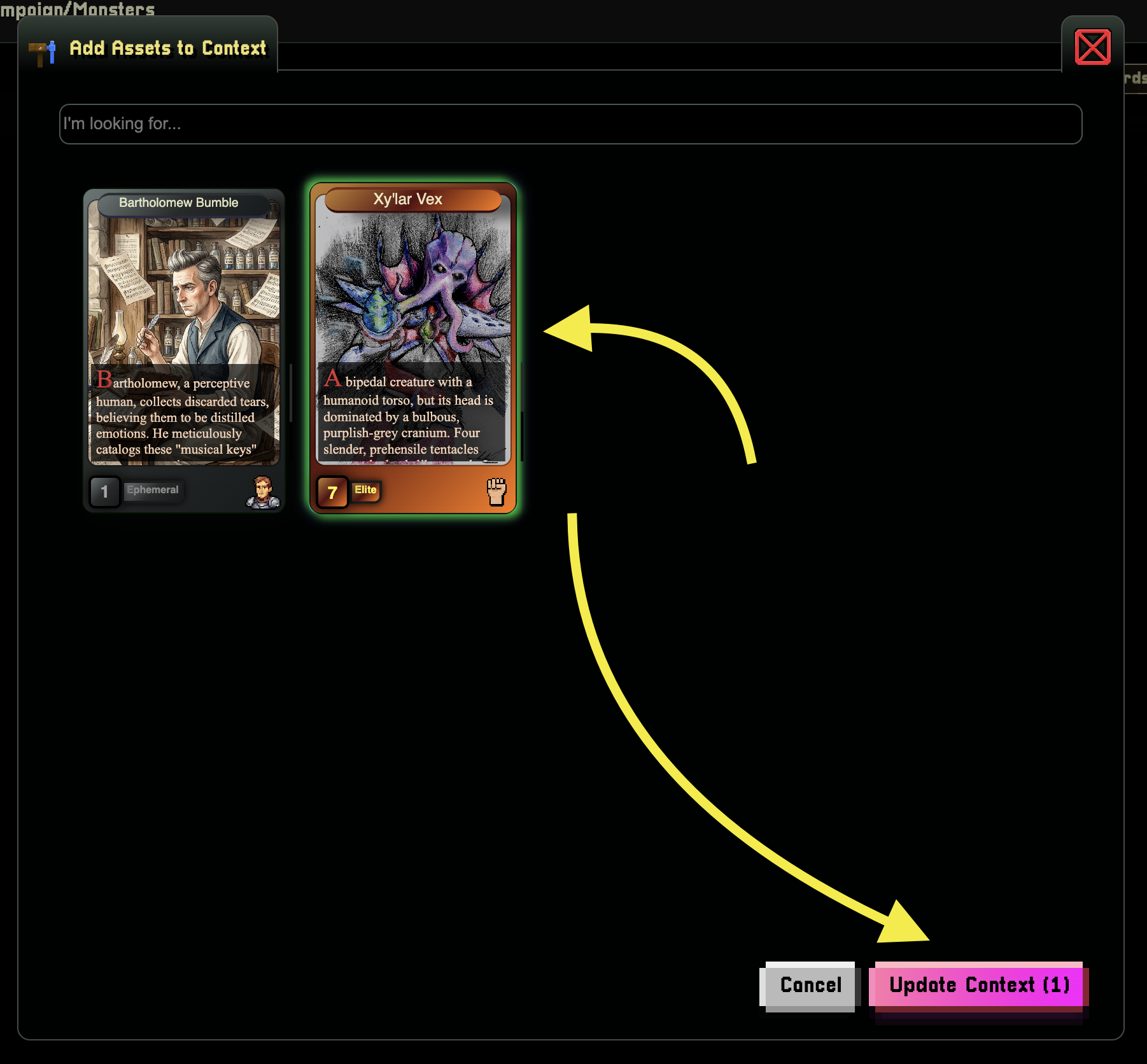
4. Confirm your selection
Viewing Your WorkBench
To see what's currently in your WorkBench, look under the MY section in the sidebar and open the WorkBench menu.
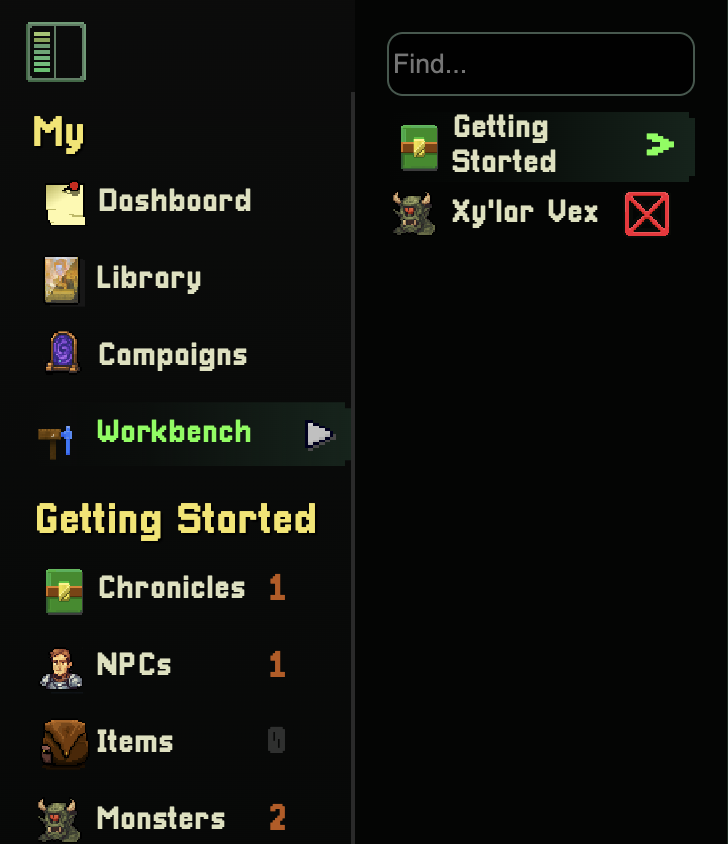
Each asset in the WorkBench is clickable — you can navigate directly to any asset's page. To remove an asset, click the X button next to it.
The X button only removes the asset from your WorkBench — it does not delete the Game Asset from your campaign.
Toggling Context Visibility
When using a generator, your context assets appear in the context box. You can toggle individual assets on or off with the eye icon to control which ones are active for that specific generation.
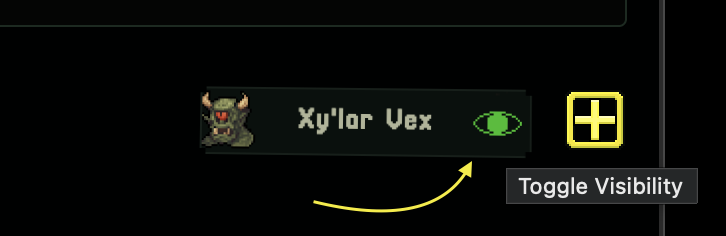
This is useful when your WorkBench has several assets loaded but you only want a few to influence the current generation.
Inline Context with @Mentions
Beyond the WorkBench, you can reference assets directly in your prompts using the @ mention syntax. This gives you precise control over how context is applied.
How @Mentions Work
When writing a prompt, type @ followed by the asset name to reference it inline:
> "A dark elf assassin who was trained by @Shadowmaster Kael and now works as a double agent for @The Silver Council"
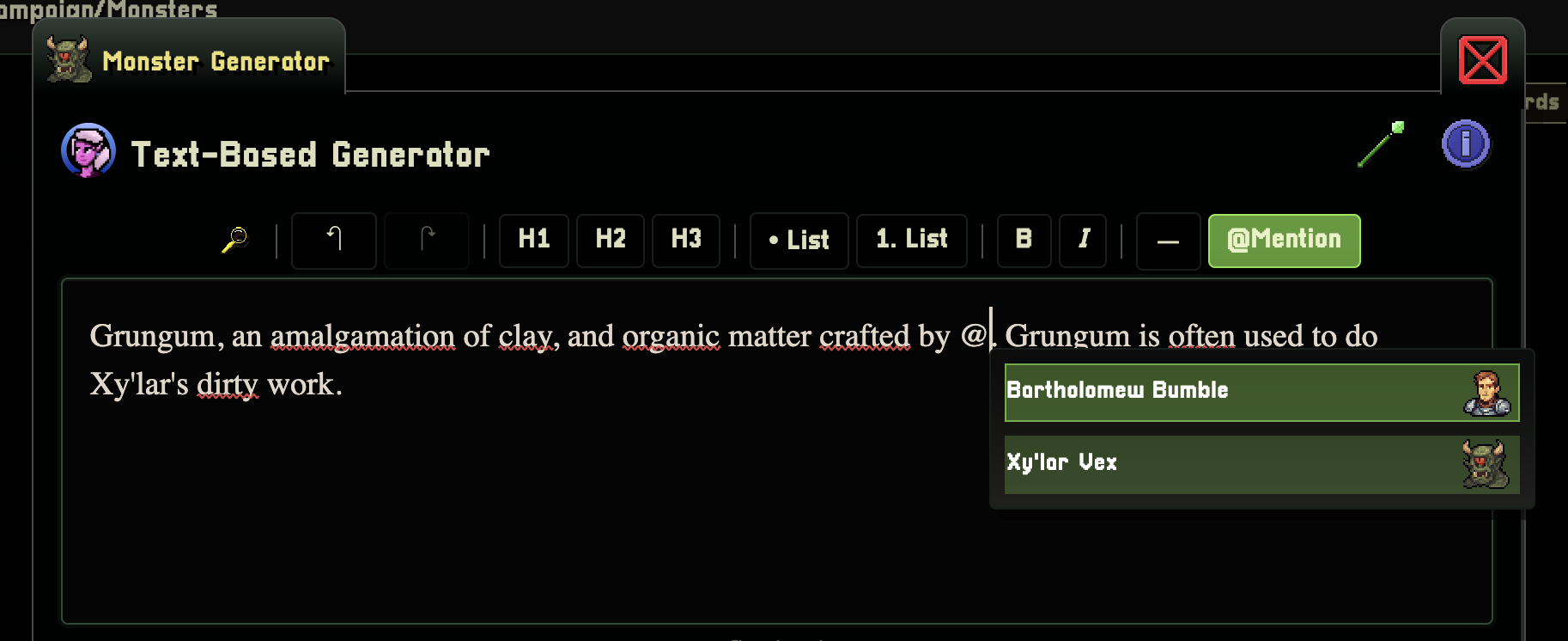
The generator will use these references to establish specific relationships in the output — not just vague awareness, but the exact role you described.
Why Inline Context Matters
There's an important difference between adding an asset to the WorkBench and mentioning it inline:
| Method | How Context is Applied |
|---|---|
| WorkBench | AI is aware of the asset and may reference it naturally |
| @Mention | You explicitly define the relationship and the AI follows your direction |
For example, if you add an NPC called "Lord Varen" to the WorkBench and generate a new NPC, the AI might decide Lord Varen is a neighbor, a rival, or a patron. But if you write "This NPC is Lord Varen's estranged daughter", the AI will build the character around that specific relationship.
You can use both methods together — load your key assets into the WorkBench for general awareness, and use @mentions in the prompt when you need specific relationships.
@Mentions in Chronicles
The @mention system also works inside the Chronicle editor. When writing or editing a Quest or Entry:
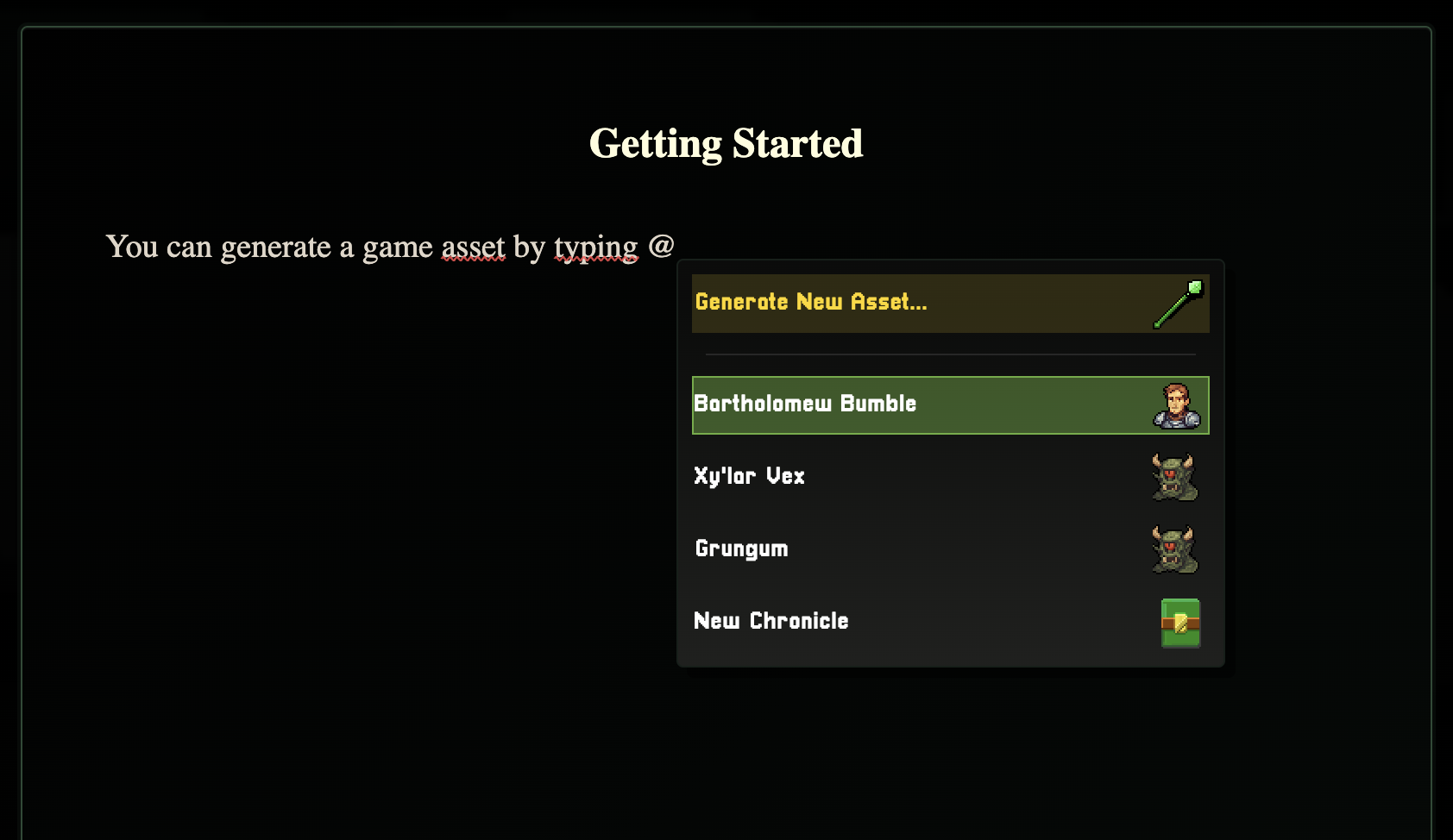
1. Type @ in the text area
2. Select an existing Game Asset from the menu
3. The asset reference is embedded in your content as a clickable link
You can also use @ to Generate New Assets directly from within a chronicle — select the asset type, generate it, and it's placed right at your cursor's location.
Asset Links
Asset Links are the relationships that World Wizard creates between connected Game Assets. They're the connective tissue of your world — they make it possible to navigate between related assets and see how everything fits together.
How Links Are Created
When you generate a Game Asset with context, World Wizard automatically evaluates each context asset and determines:
1. Is a link necessary? — Direct relationships (parent, employer, ally, located in) get links. Broad ambient connections (same world, same era) do not.
2. What is the relationship? — The AI determines a relationship type like "quest giver", "father", "enemy", "located in", etc.
3. What's the description? — A brief AI-generated summary of how the two assets relate.
Links are always bidirectional — if NPC A is linked to NPC B as "employer", NPC B gets a reverse link back to NPC A.
Viewing Links
To see an asset's links, open the asset detail page and click the Links option.
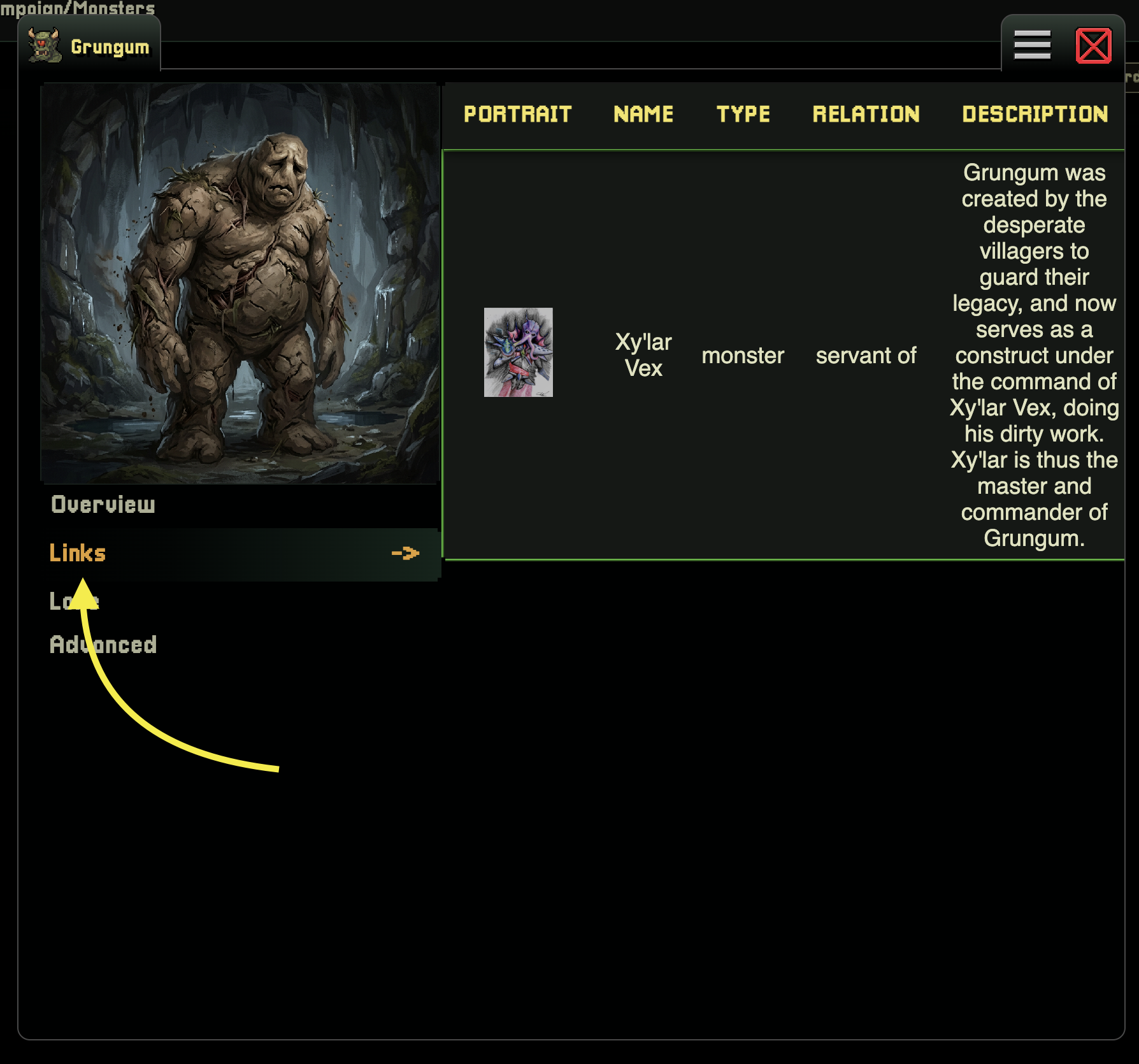
From here you can see all connected assets, their relationship types, and navigate directly to any linked asset.
Links are created automatically when using the generators with the WorkBench or @mentions. You don't need to manage them manually — they build up as you create and generate.
Common Relationship Types
Here are some examples of relationship types the system creates:
| Relationship | Example |
|---|---|
| Quest giver | NPC who assigns a quest |
| Takes place in | Location where a quest unfolds |
| Encountered in | Monster faced during an adventure |
| Found in | Item discovered at a location |
| Father / Mother | Family relationships between NPCs |
| Enemy | Rival or antagonist relationship |
| Member of | NPC belonging to a culture or faction |
| Located in | Asset situated within a GeoLocation |
| Related to | General connection between assets |
Context and Chronicles
Chronicles (Quests and Entries) have a special relationship with context:
• Chronicles can be used as context — Adding a Quest or Entry to your WorkBench feeds its narrative content into future generations
• Chronicles don't create Asset Links — Unlike NPCs or Items, a chronicle used as context provides narrative flavor without creating formal relationship entries
• Quests auto-generate assets — When a quest invents new characters or items, those are generated as full Game Assets and linked automatically
PRO TIP — Add your active quest chronicle to the WorkBench while generating supporting assets. The quest's narrative will inform NPC personalities, item descriptions, and location details, keeping everything consistent with the adventure you're building.
Building a Connected World
Here's a practical workflow for using the Context Engine to build an interconnected campaign:
1. Start with the foundation — Generate a few key locations and NPCs. These are the anchors of your world
2. Load them into the WorkBench — Add your foundational assets so everything you generate going forward is aware of them
3. Generate with purpose — When creating new assets, use @mentions to define explicit relationships: "A merchant in @Thornhaven who supplies weapons to @Captain Relos"
4. Build quests on top — Generate quests with your existing NPCs and locations as context. The quest will naturally reference your world
5. Let the web grow — Each generation creates new links and references. Over time, your campaign becomes a rich, navigable web of connected assets
6. Review your links — Periodically check Asset Links on your key assets to see the relationships that have formed. You might discover unexpected connections that inspire new adventures
Tips
1. Quality over quantity — A few well-chosen context assets produce better results than flooding the generator with everything you have
2. Be specific in @mentions — "@Kira trained this NPC in swordfighting" is far more useful than just "@Kira"
3. Refresh your WorkBench — Swap out WorkBench assets as your campaign focus shifts. Keep it relevant to what you're currently working on
4. Chain generations — Generate an NPC, add them to the WorkBench, then generate their rival. The rival's backstory will naturally reference the first NPC
5. Use chronicles as context — A quest in the WorkBench provides rich narrative context for generating NPCs, items, and locations that fit the adventure perfectly