Getting Started
This guide will walk you through Settings up a campaign, generating and creating Game Assets, modifying game assets, and the basic options for Game Assets
Campaigns
Each adventure lives in it's own container - this is your campaign.
Campaigns have various settings and text within them that will define the generation and inference processes in World Wizard.
• GameSystem: DnD5e is the only game system we support right now as of v3.0.0
• Description: If a description is given to your campaign, it can be used to as context, so adding more details here as possible will help you right off the bat
Create a Campaign
1 Once logged in, you'll see your Dashboard
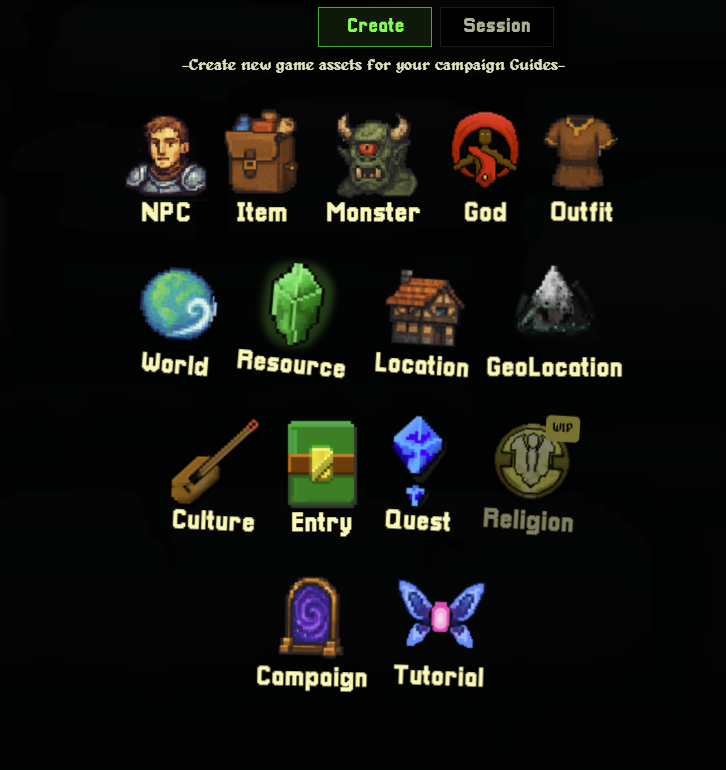
2. Click the "Create New Campaign" button
3. Give your campaign a name
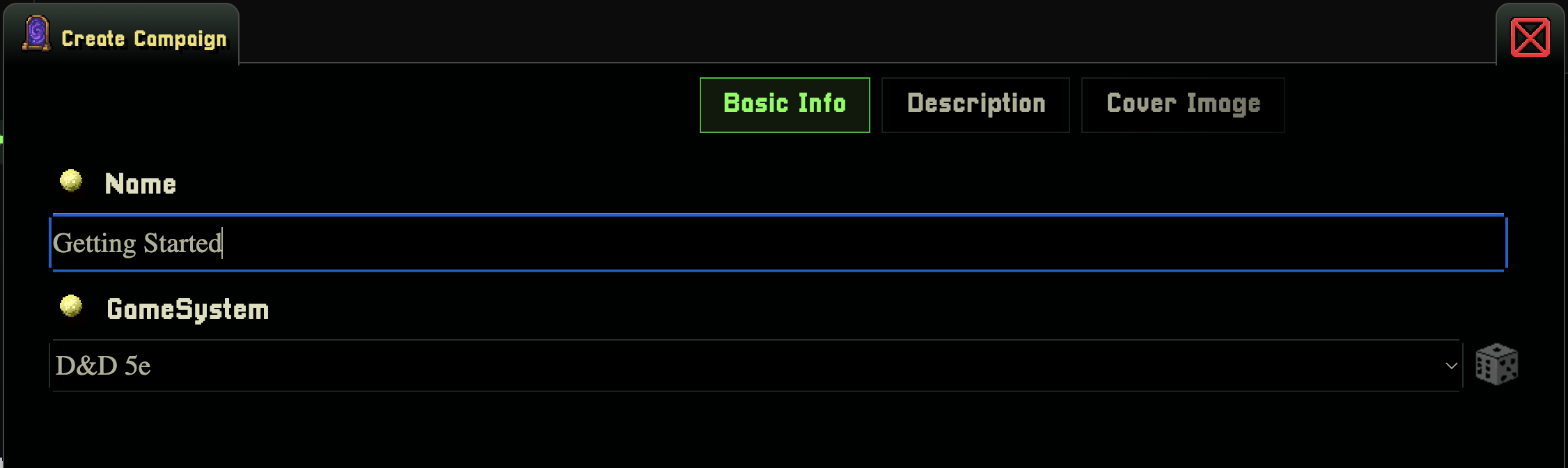
5. Click Create
Your campaign now appears in the Campaigns section in the sidebar.
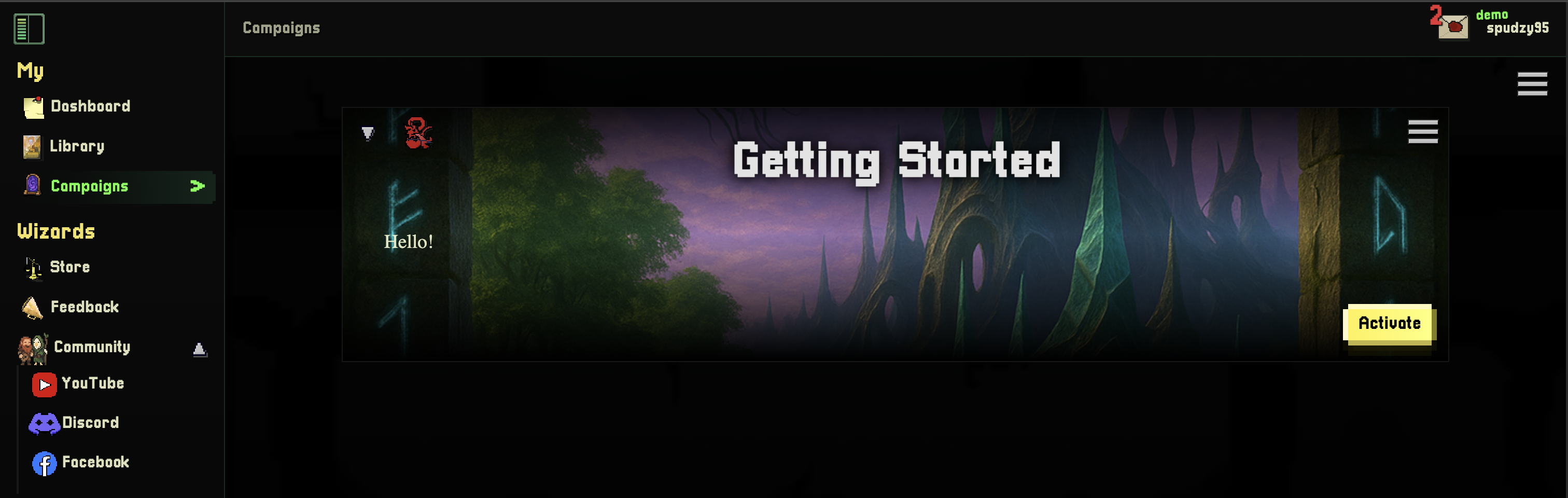
Activate Campaign
Campaigns need to be activated in order for World Wizard to known where to put your stuff. Each campaign has it's own library of Game Assets to make it easy for you to swap context on demand.
1. Go to Campaigns in the sidebar (under "MY")
2. Find your campaign in the list
3. Click Activate to set it as your active campaign
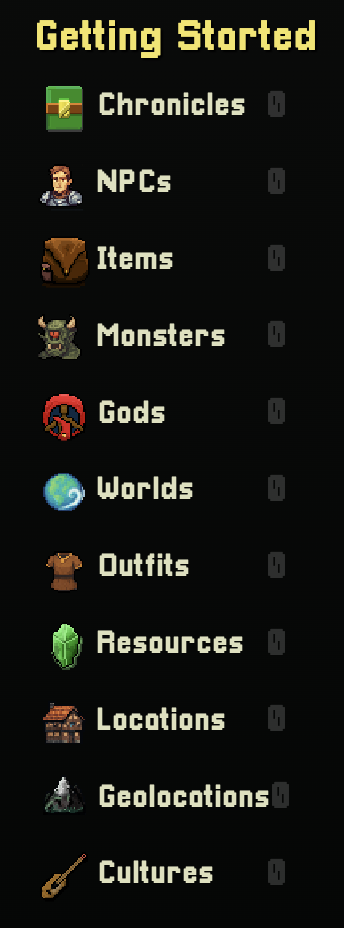
Your active campaign name will now appear in the sidebar, with all its content organized beneath it. You can only have one campaign active at a time, but you can switch between multiple campaigns anytime.
Manage Your Campaign
Fom the Campaigns page, you can:
• Edit campaign details (name, description)
• Deactivate a campaign (to switch to another)
• Delete a campaign
Deleting a campaign permanently removes all its assets. Make sure you want to do this before confirming!
Libraries
Libraries are containers consisting of stuff. This stuff usually consists of Game Assets
Game Assets are anything in your campaign that you players can interact with, e.g Monsters, Items, NPCs, Locations, etc...
Your account has a Library, and each of your Campaigns has it's own Library. This is important for a miriad of reasons. The main reason is to enable you to import Game Assets into your various campaigns without worrying about losing the base Game Asset from your Library
Practically it enables us to keep stuff separated, and in the future possible to import entire adventures into your account seamlessly. This feature is coming soon.
Generate Game Assets
Most Game Assets can be generated on World Wizard, the generators are how you go from idea -> thing your players can interact with without the need to know every little detail about the game system you are running.
Most Game Assets, including Worlds, can be generated. Open a builder's Generate tab to create a draft with AI, then use the Edit tab to refine and save it.
What Can You Generate?
• NPCs — Detailed characters with personalities, relationships, and backstories
• Monsters — Creatures with stats, lore, and combat abilities
• Items — Weapons, armor, magical artifacts with special properties
• Gods — Deities with domains, followers, and mythologies
• Locations — Towns, dungeons, taverns
• GeoLocations - Islands, mountains, continents
• Factions — Societies with customs, values, and traditions
• Resources - Minerals, rare jewels, mana, anything your world uses as a resource
Generating Assets
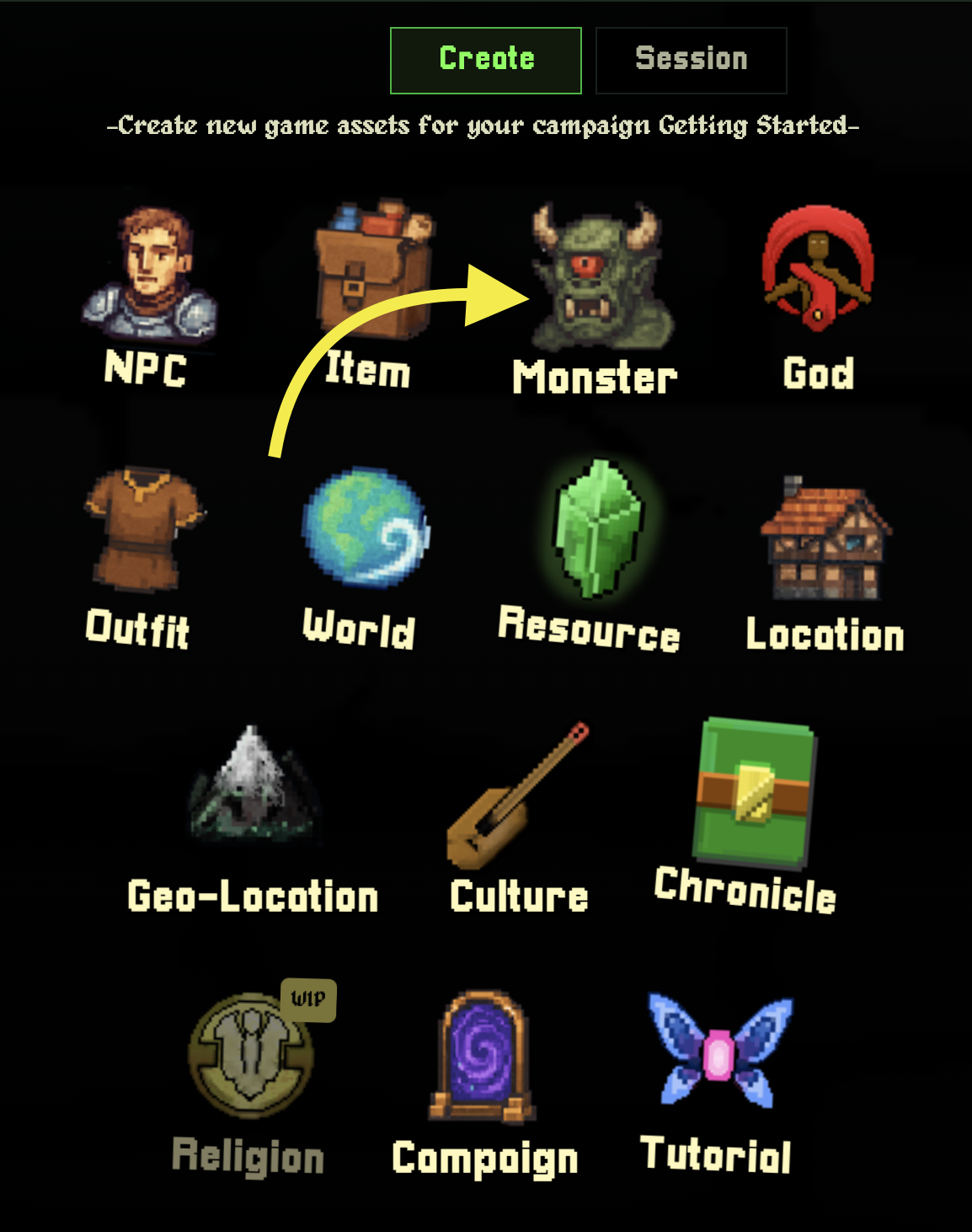
To default method of generating Game Assets will be to use the Dashboard.
You will land here by default when activating your campaign.
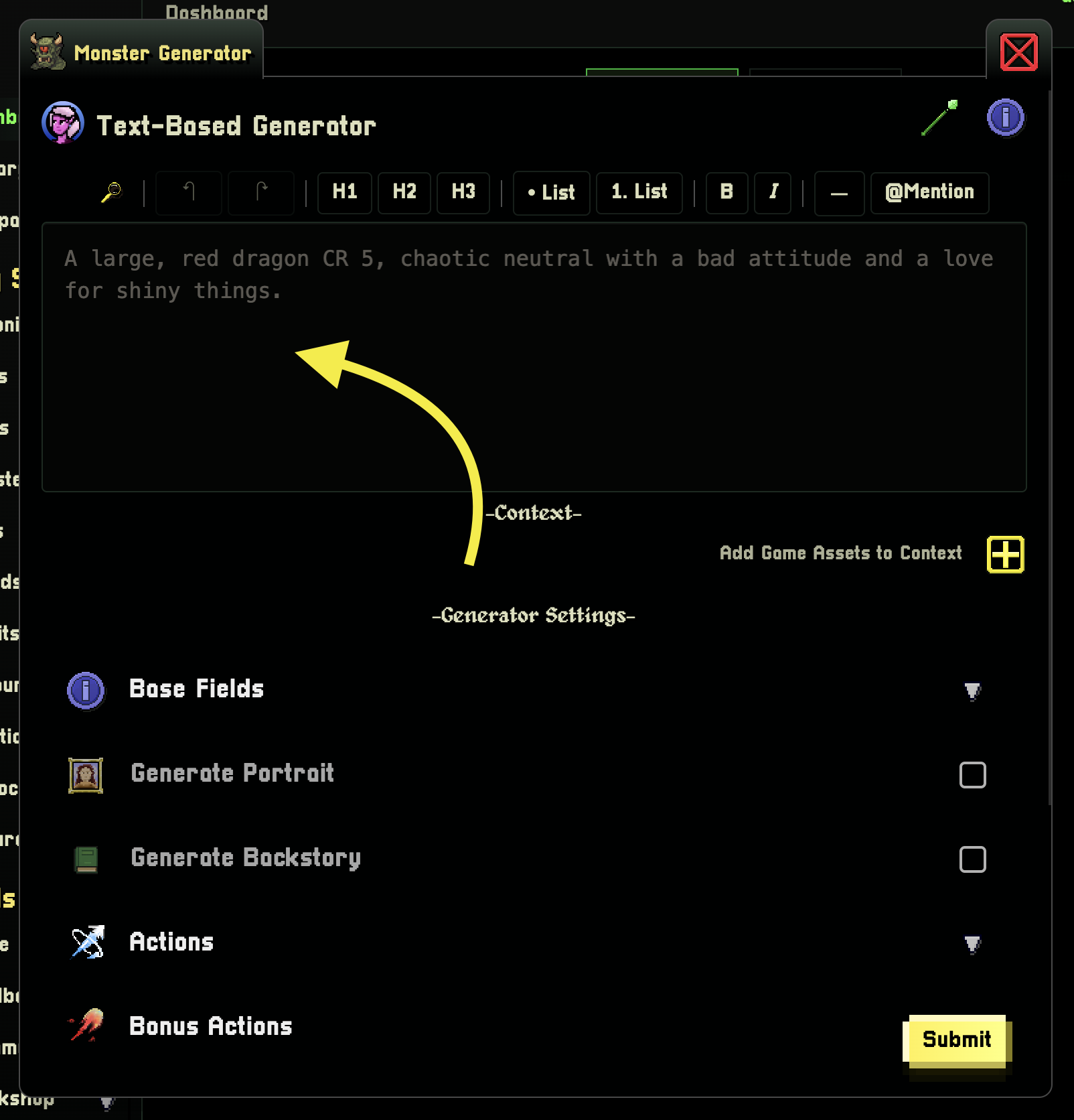
Simply click a button of an asset you wish to generate
Extra Options
The prompt is the main field in the generators, but you ca customize your GameAsset further with options like:
• Base Fields
• Generate Portrait
• Generate Lore
Different options present for different Game Assets
Context
Context is how you give World Wizard more information about related Game Assets to make your generated GameAsset fit your scenario perfectly
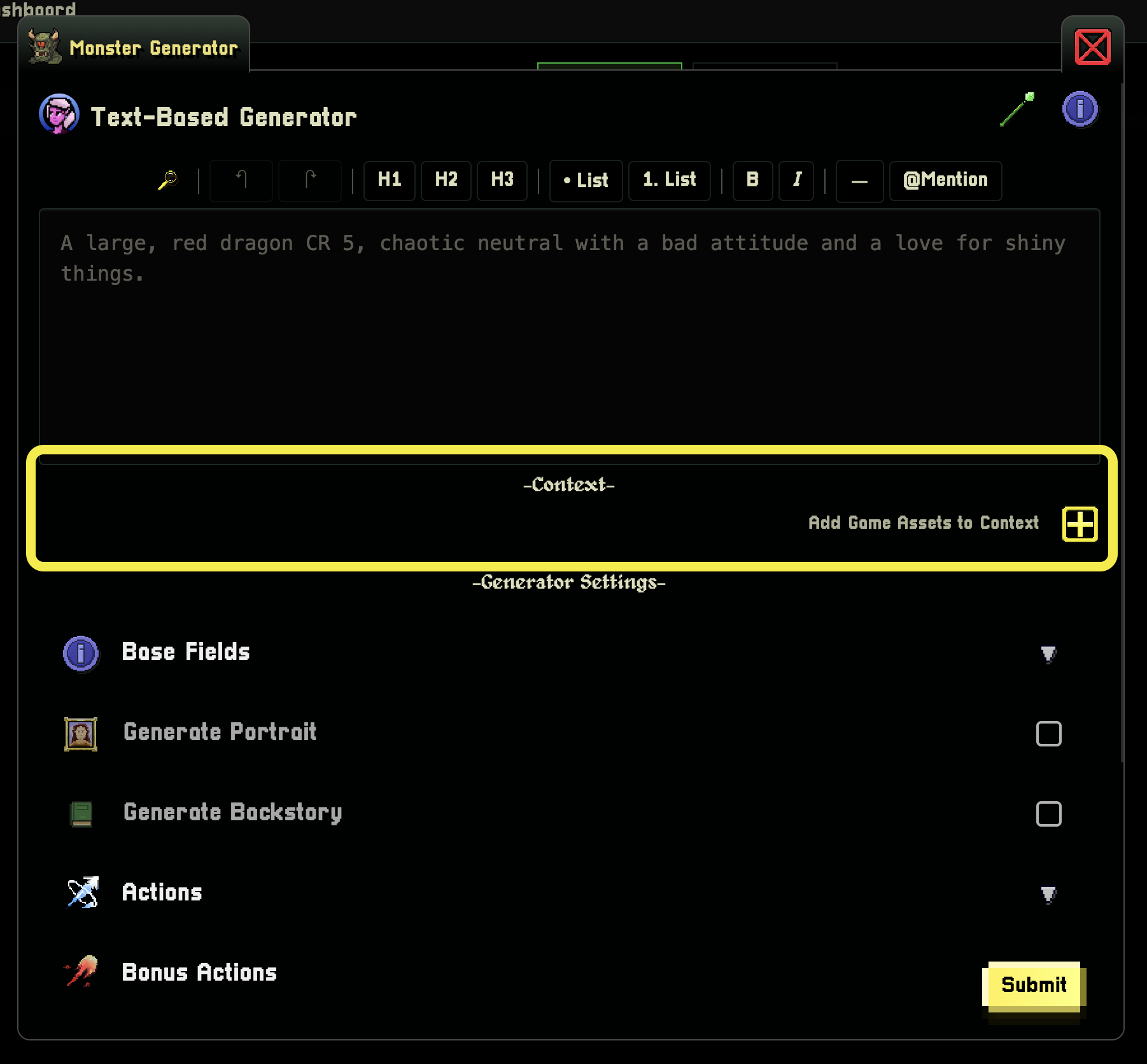
Adding Context is a great way to make your world more connected. To add context to your request is an easy as clicking the + button, selecting your game assets, and confirming.
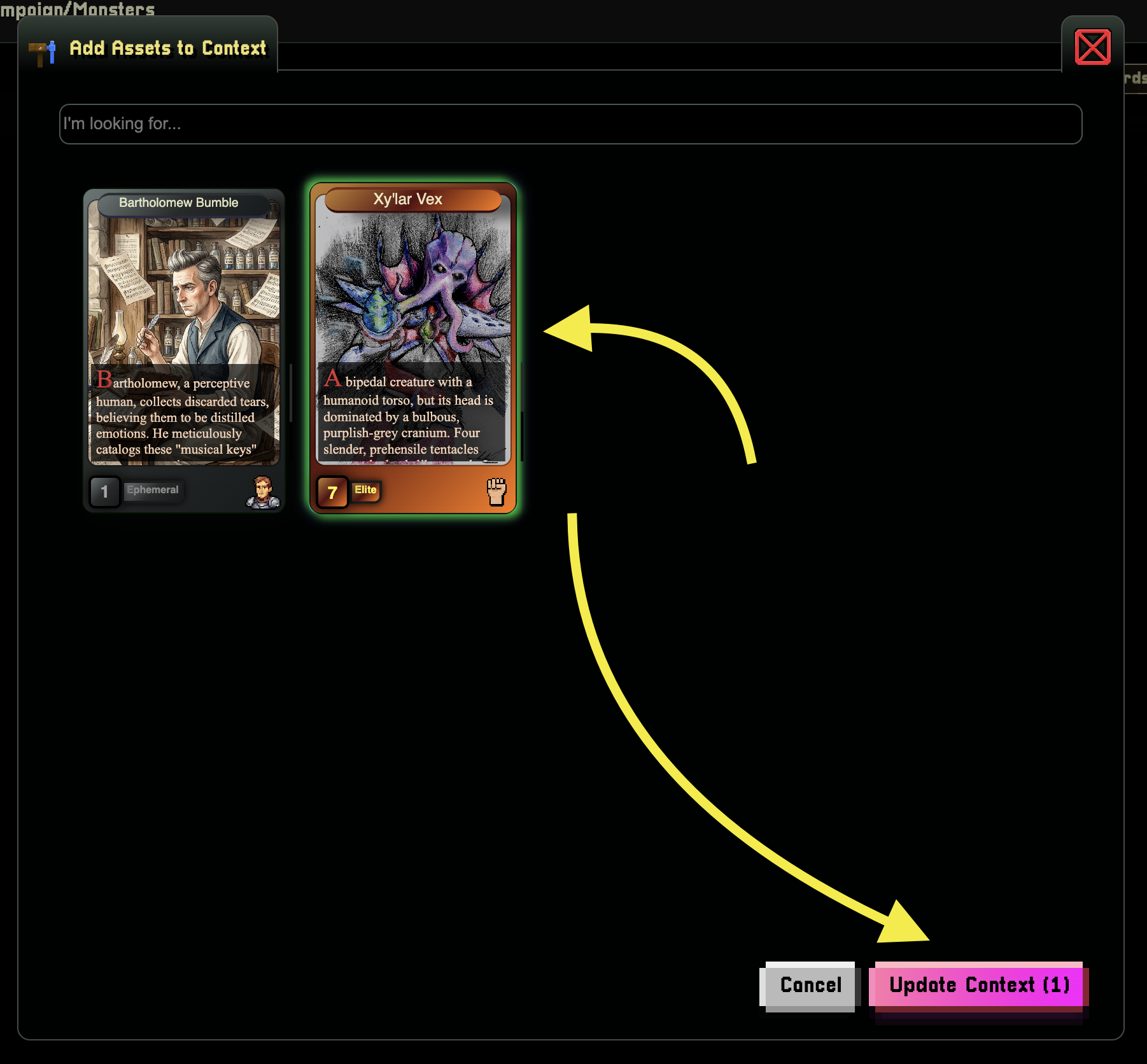
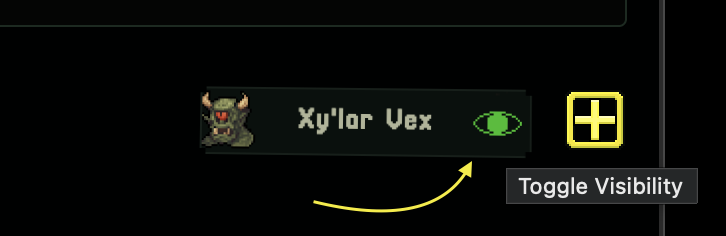
Notice that after selecting an GameAsset for being used in the context of your request, the GameAsset will appear in the context box. You can toggle visibility via the eye icon
Inline Context
Yu can also add context directly inline, for example:
• "Grungum, an amalgomation of clay, and organic matter crafter by @Xy'lar Vex. Grungum is often used to do Xy'lar's dirty work.
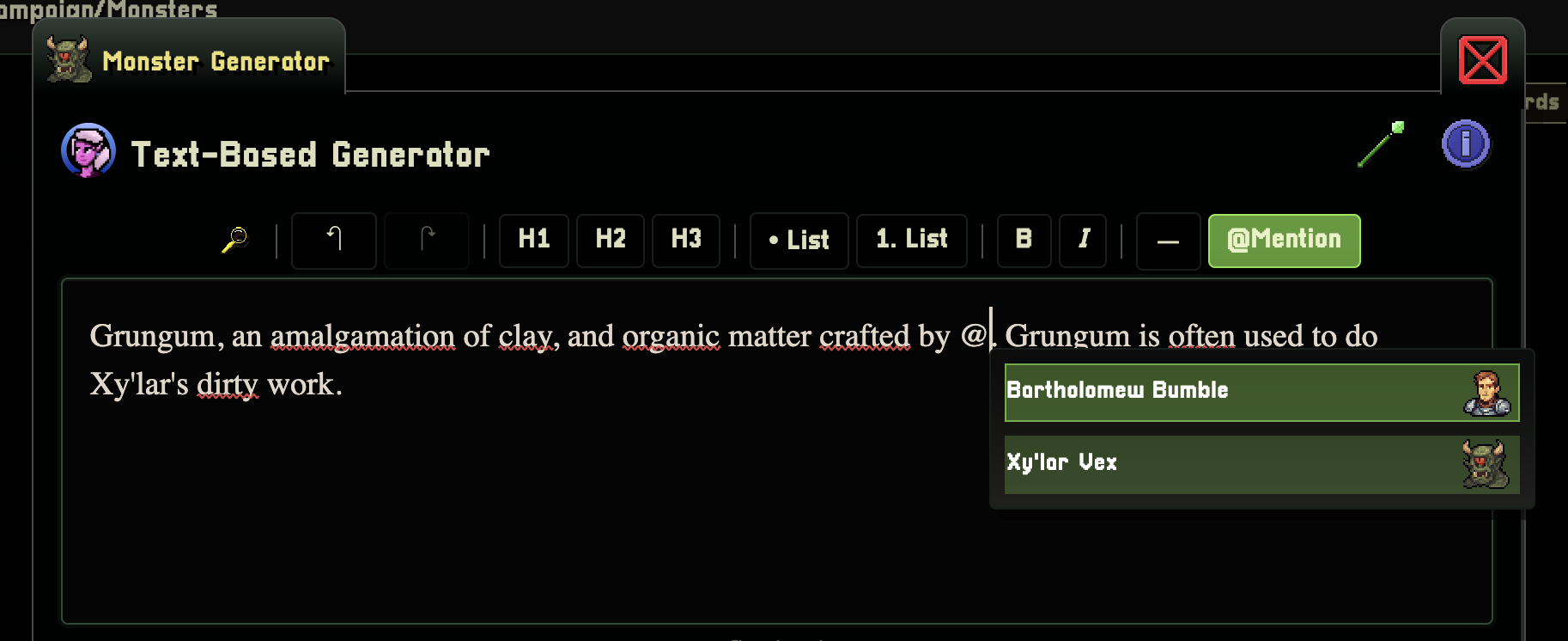
sourcing context inline is a great way to gain more control on how you want the context to be applied.
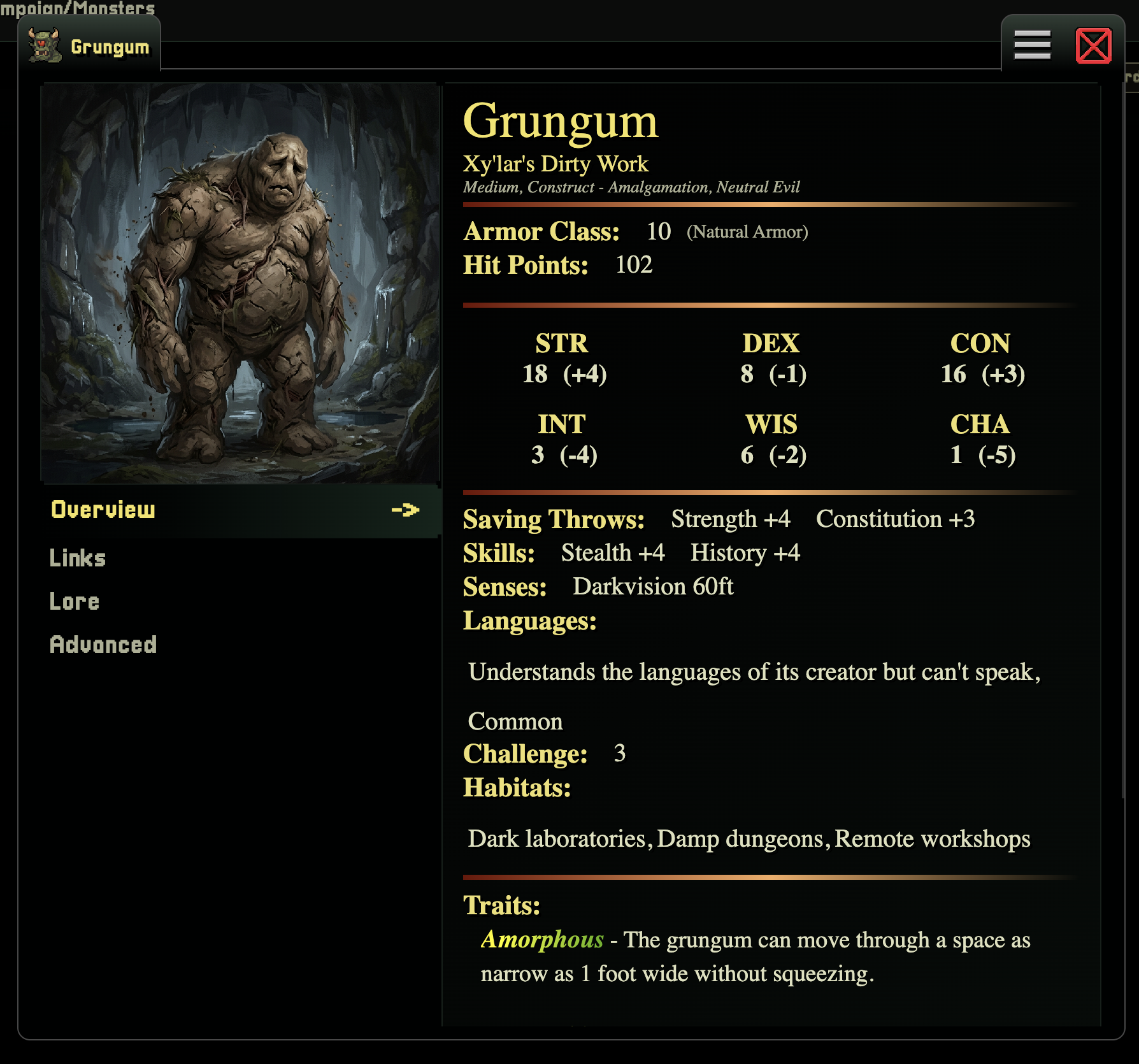
In the prompt we are specifically telling WorldWizard that this monster should be used as a sidekick / dirty worker for our big bad.
letting an AI figure this out for us which may give us mixed results.
The Workbench
You should be aware of context at this point. The WorkBench is where all your context is stored persistently. You can view and modify the active context via the WorkBench.
To modify what is inside your WorkBench, simple look under the MY section on the sidebare, and open the WorkBench sidebar menu
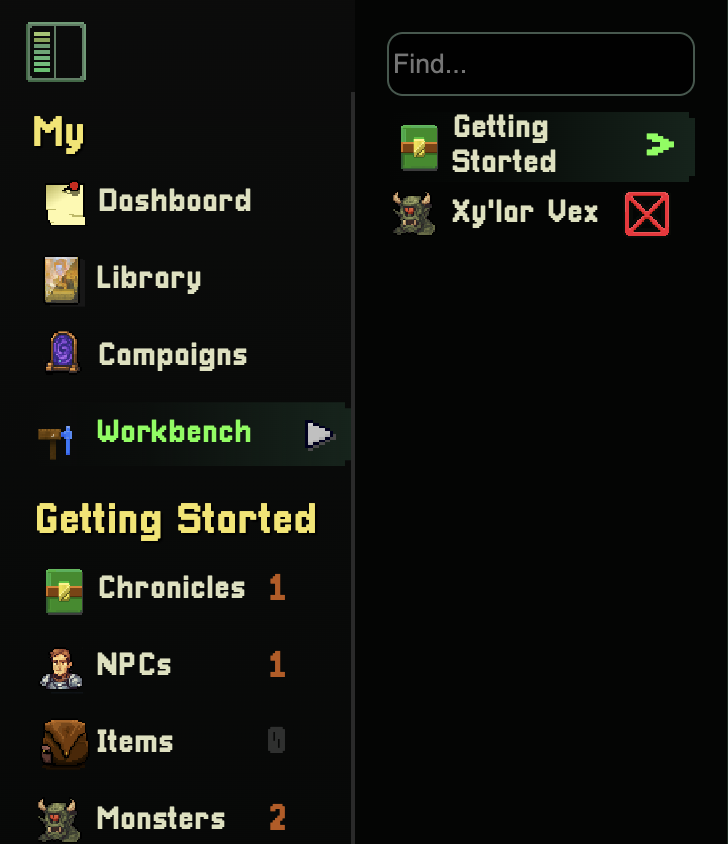
You can click any of these Game Assets and navigate to that specific page, as well as remove them via the X button.
The X button does not remove the Game Asset from your campaign, it merely removes the Game Asset from your WorkBench
Asset Links
World Wizard automatically Links things together when generating Game Assets. To see these, simply click the Links option in the details modal.
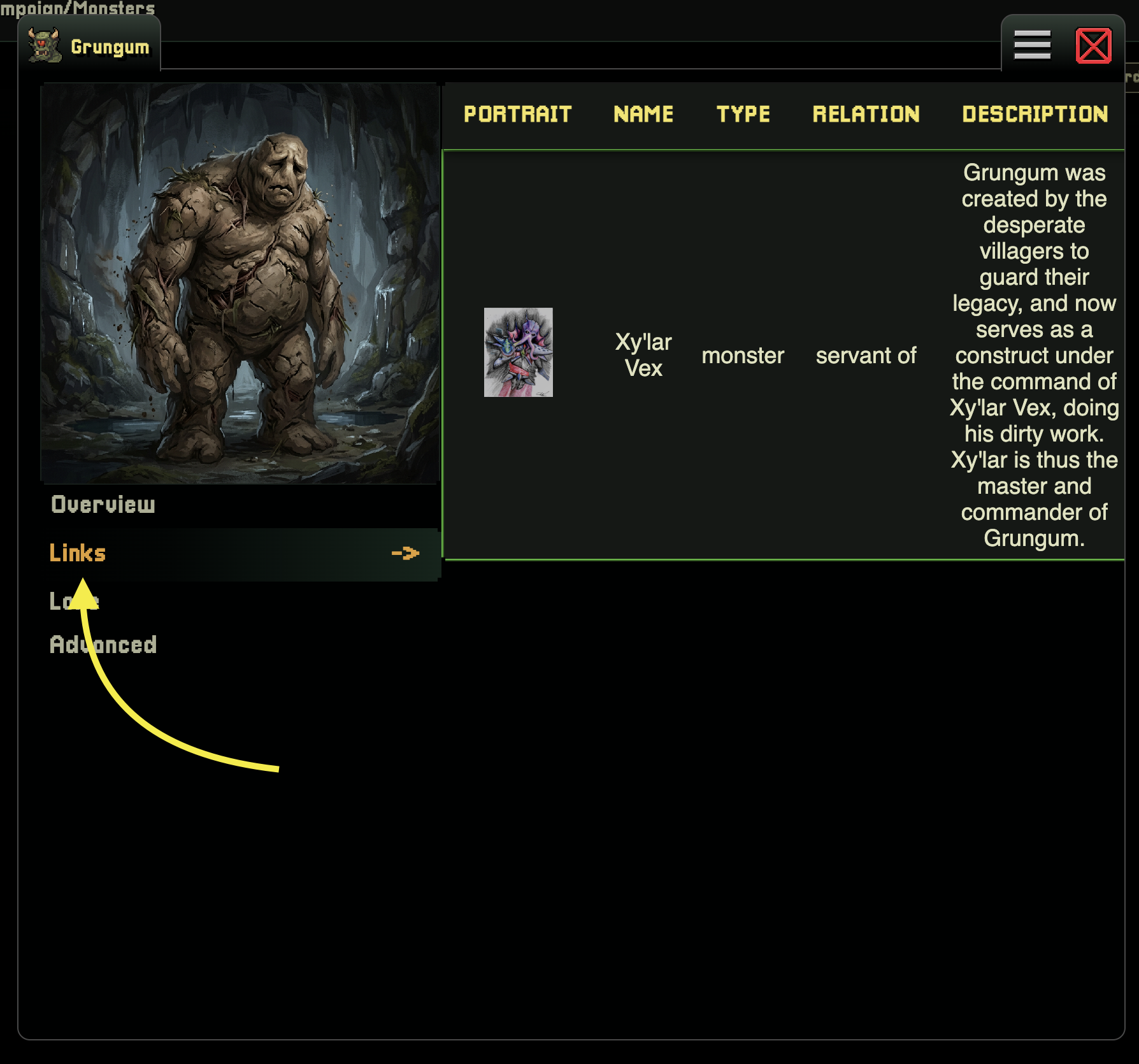
Links are automatically assigned by using the generators naturally with the WorkBench e.g using the @mention menu to attach context inline, or when the AI automatically links Game Assets in the context
Customize Your Game Assets
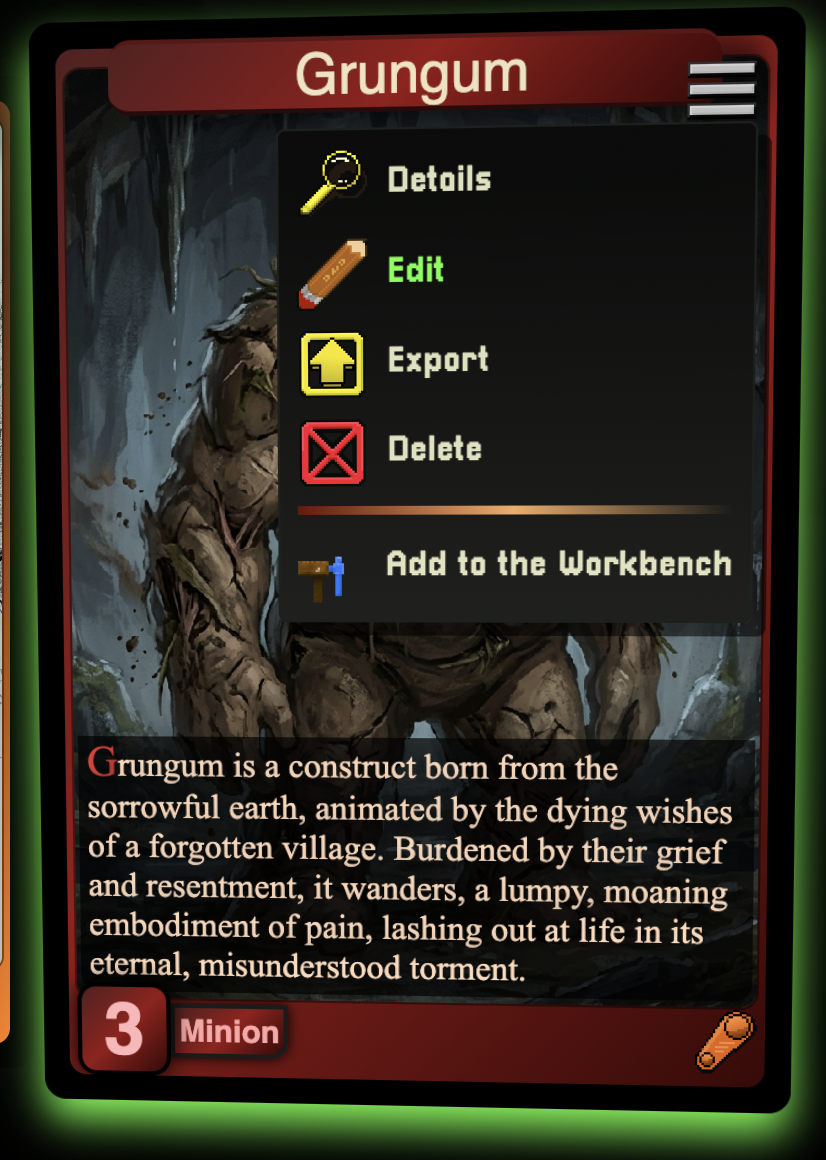
Everything that is generated in World Wizard is fully customizable, editing Game Assets is as simple as clicking the hamburger icon > Edit button.
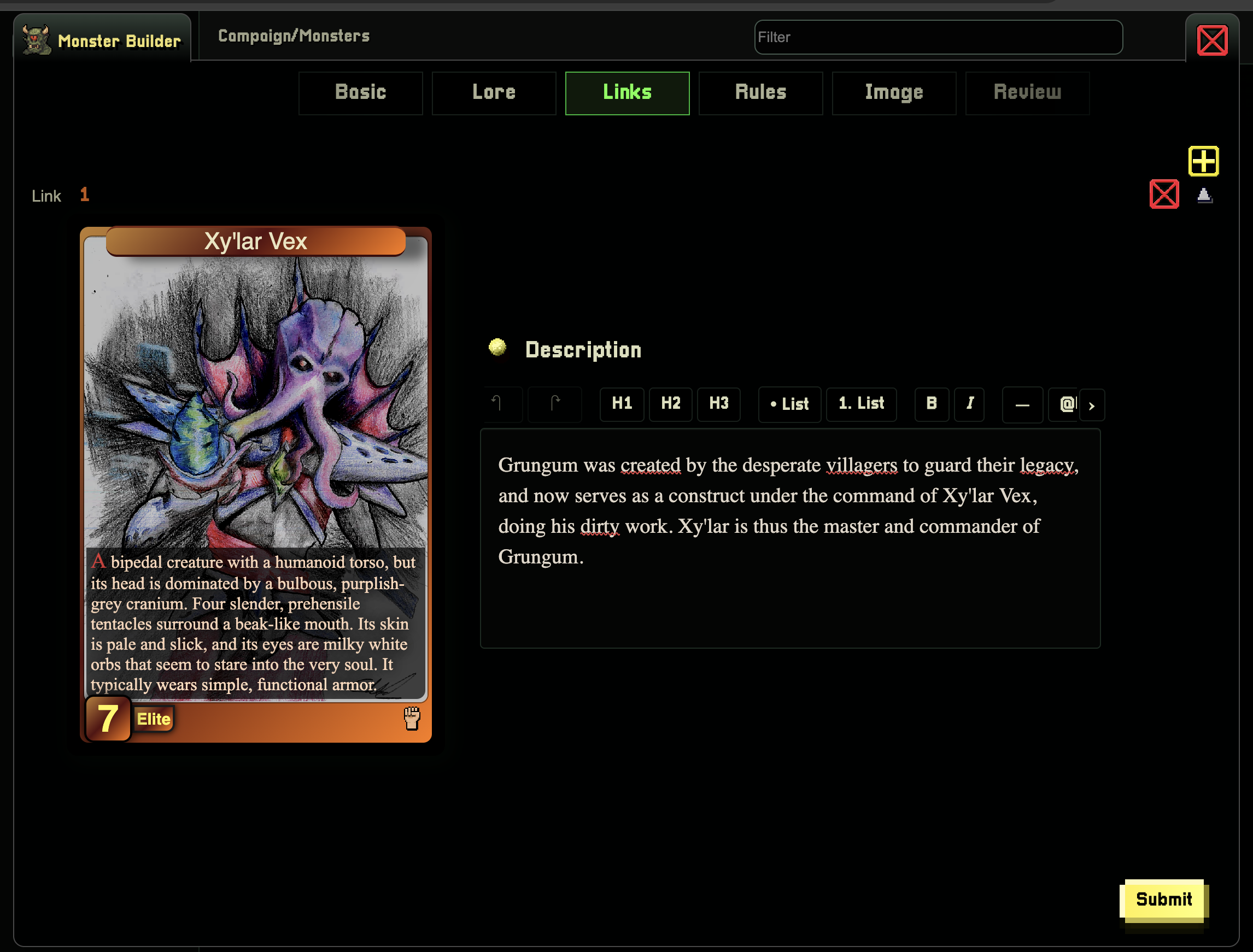
The builder is broken up into different categories.
To quickly navigate to the category you wish to modify just swipe / click to the tab that you want to edit.
Chronicles - The docs of World Wizard
To create a Chronicle, navigate to the chronicles tab under your campaign, and click Create
If you already have chronicles, then the Create option will live in the hamburger menu in the top-right of the page.
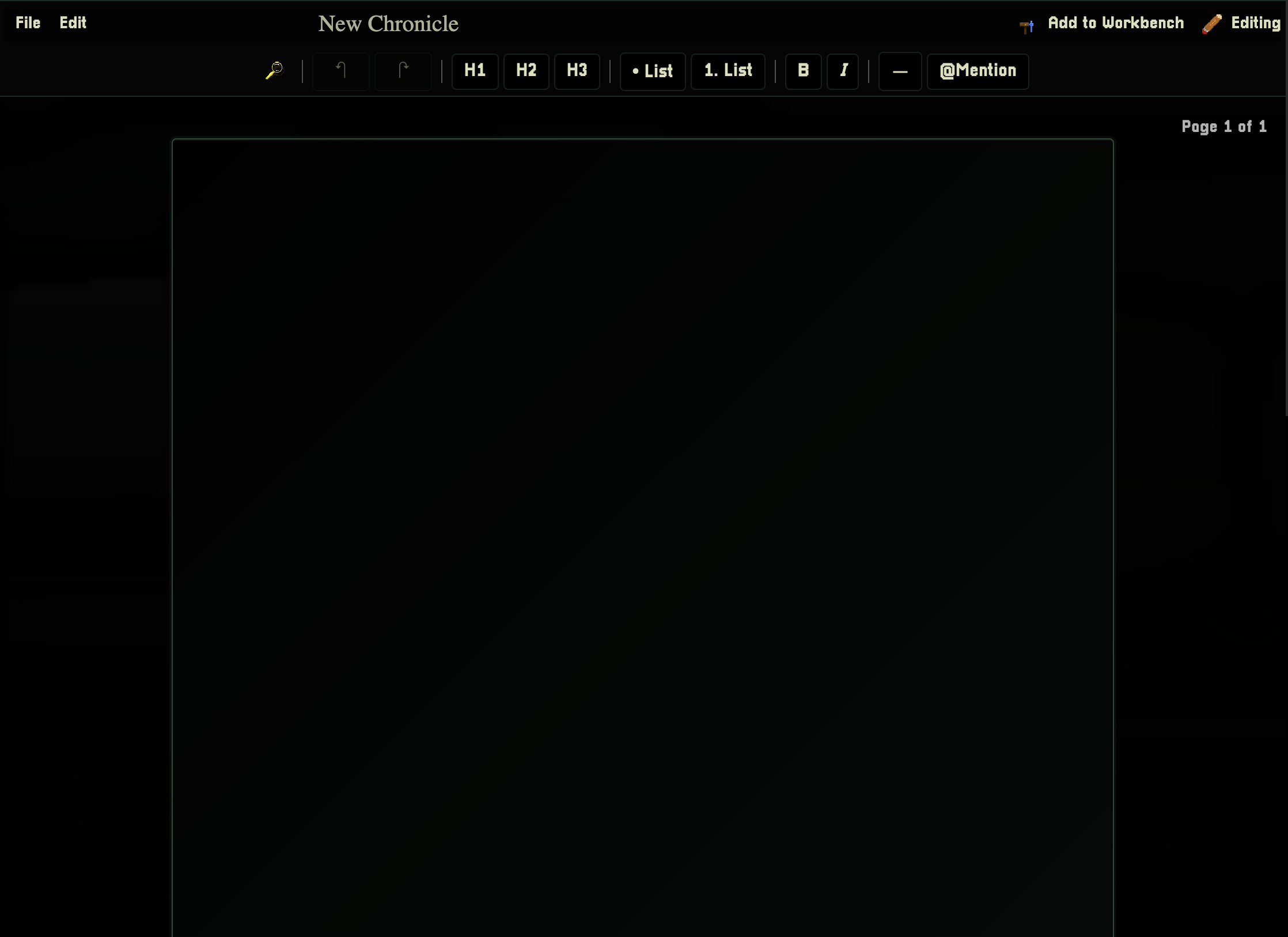
The Toolbar
All options possible exist on the toolbar. Use the toolbar to insert headers, lists, and open the @mentions menu.
Generating Game Assets In Chronicles
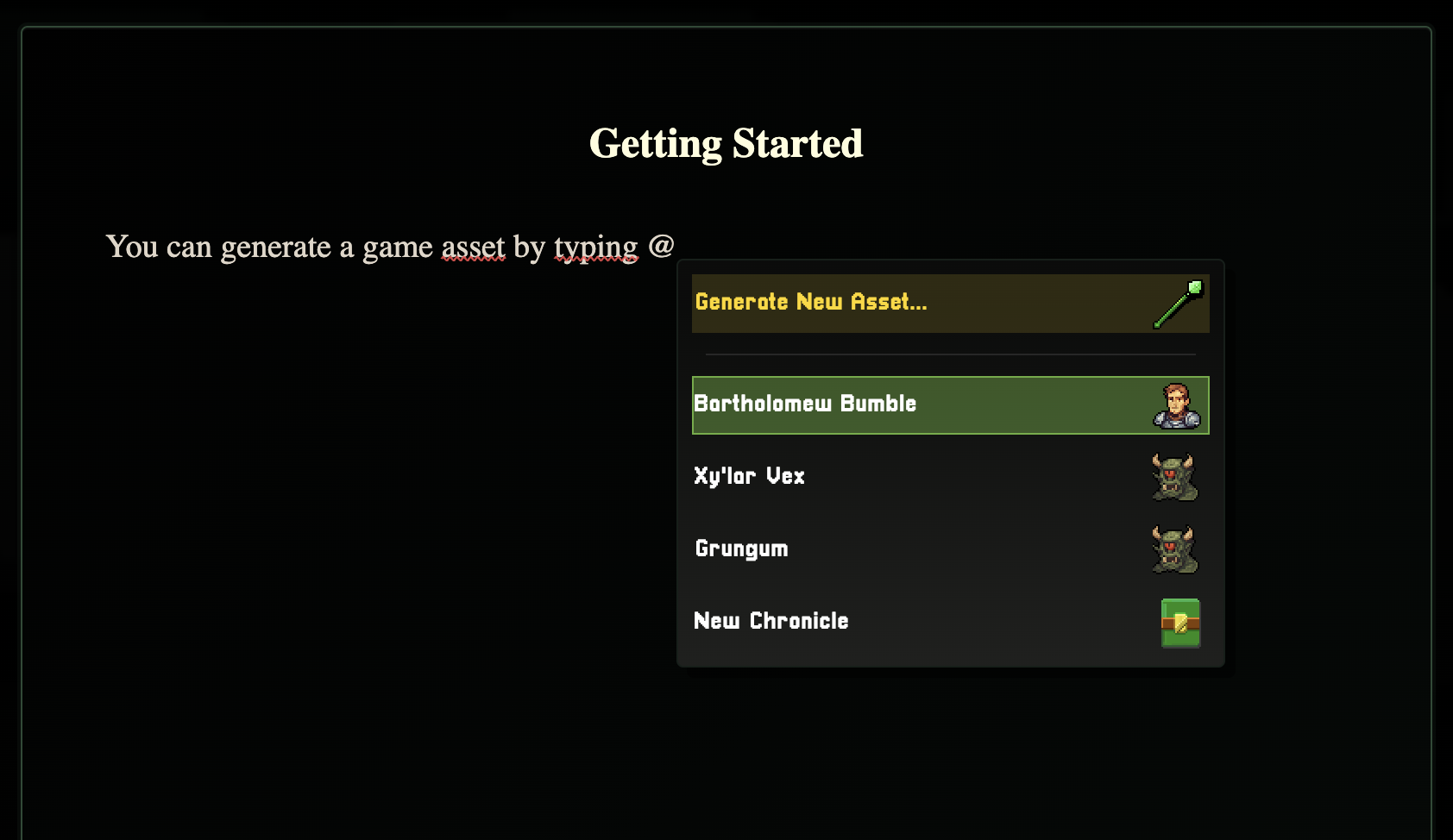
You can generate Game Assets in the chronicle text area by typing the "@" and selecting the Generate New Asset button.
Then simply select the Game Asset that you want to generate from the modal options.
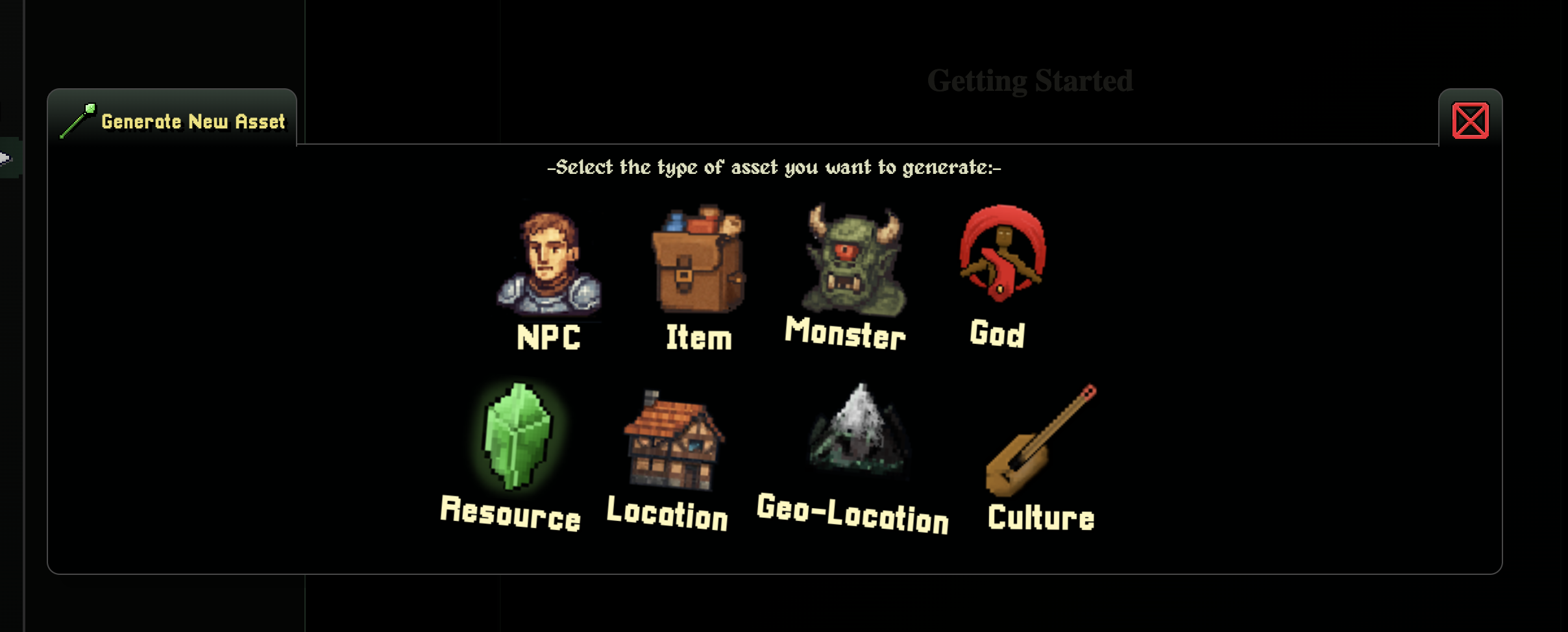
At this point you can generate your Game Asset as normal.
Generated assets will then be automatically placed in the cursor's location of your chronicle so you don't have to anything else.
PRO TIP - Adding the chronicle to the WorkBench will automatically include it in your context so that all of the content you are working on in the chronicle will be used as context for your Game Asset.
The Wizards Workshop
The Wizards Workshop allows anyone to share their creations with the community and get paid for it too.
Currently, the Wizards Workshop does not support uploading user content, but you can still access helpful stuff in there like the full SRD Monsters and SRD Items collections.
Adding Workshop content to your library
It may be useful to use a common item or monster from the SRD as a base template. In that case you can import them from the Wizards Workshop by navigating the pack on the sidebar
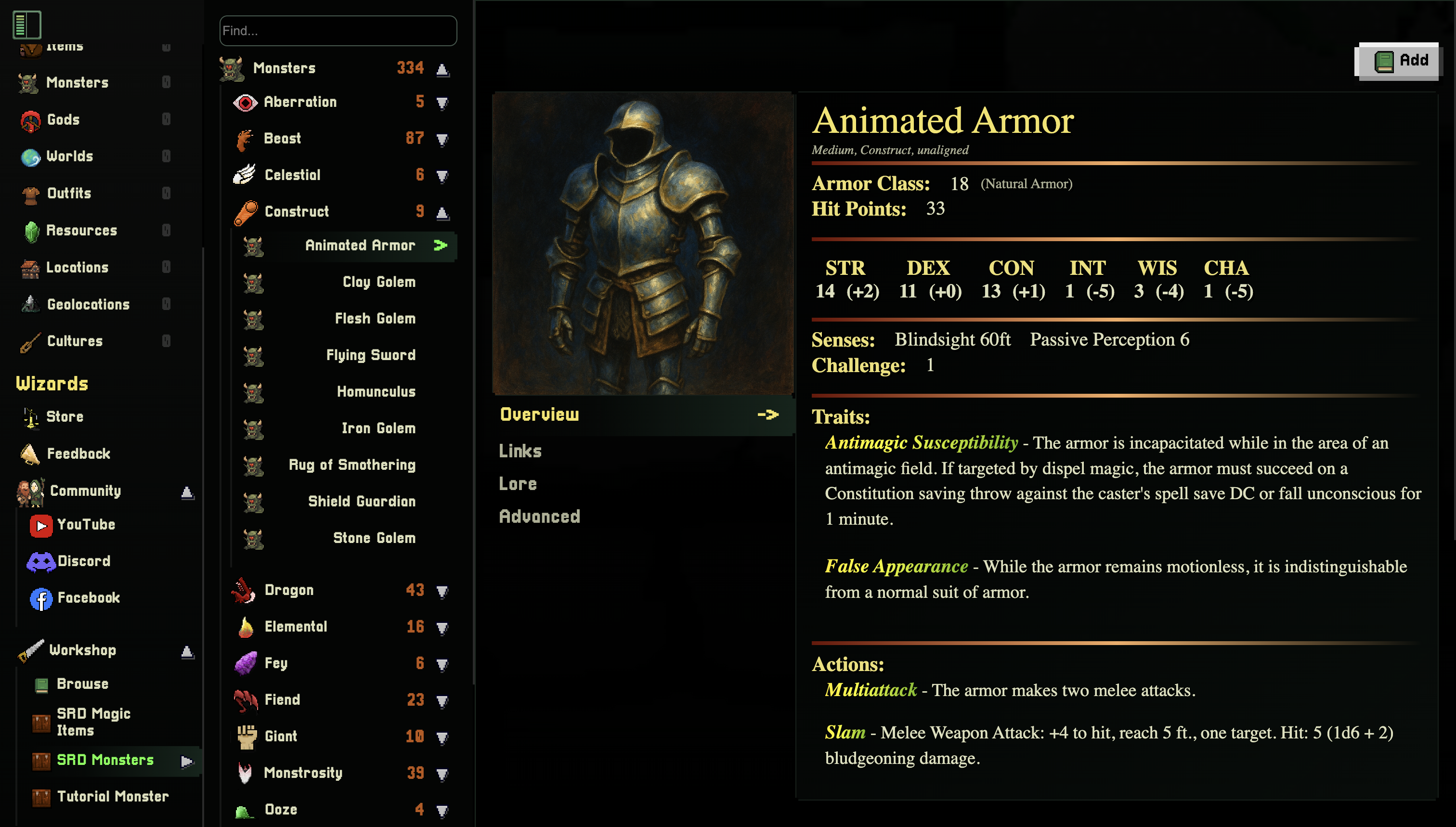
Simple click the Add button
The Game Asset will be imported into your library
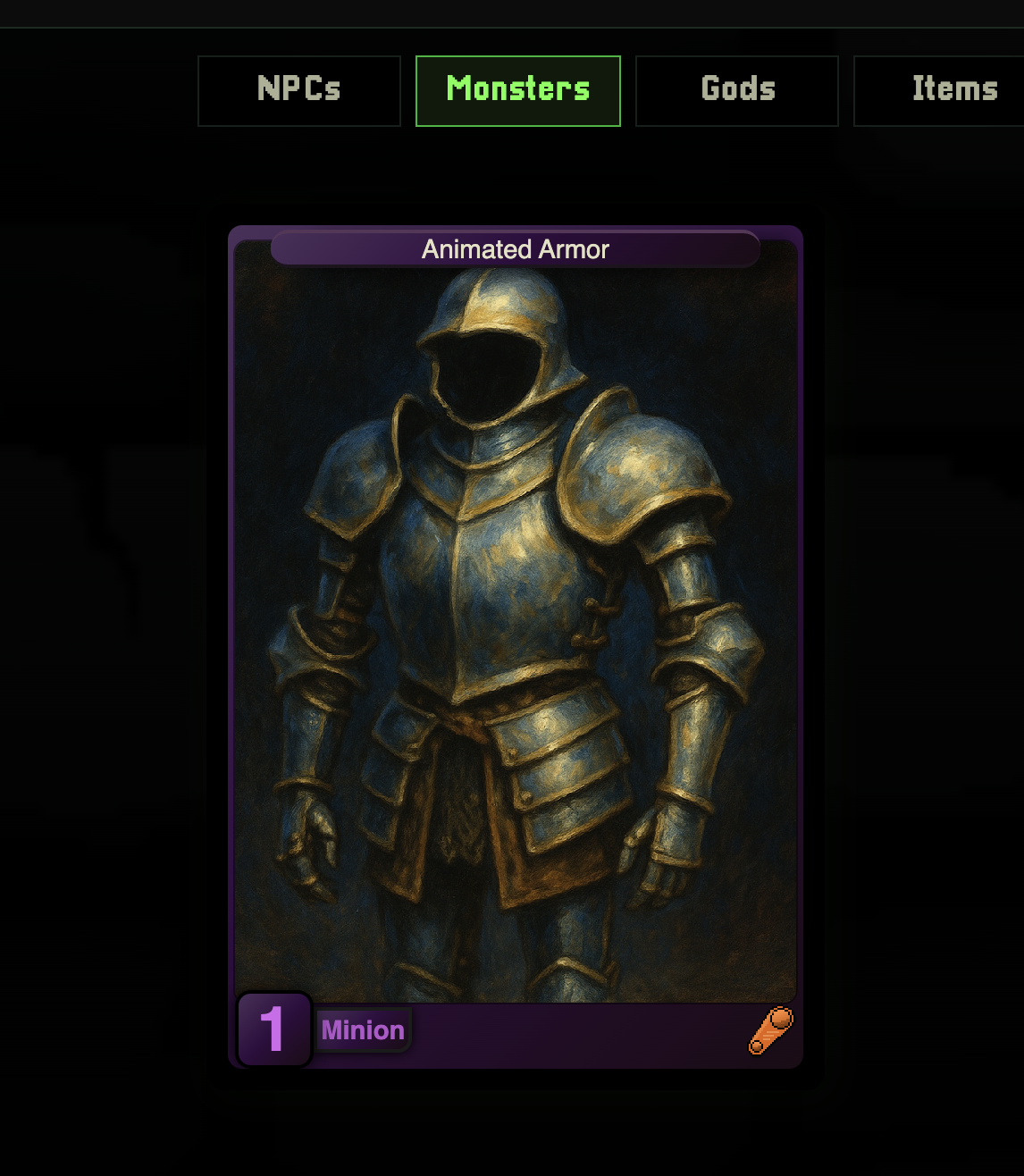
Navigate the tabs to the category e.g Monsters, Items, etc..
Importing assets from your library into your campaign
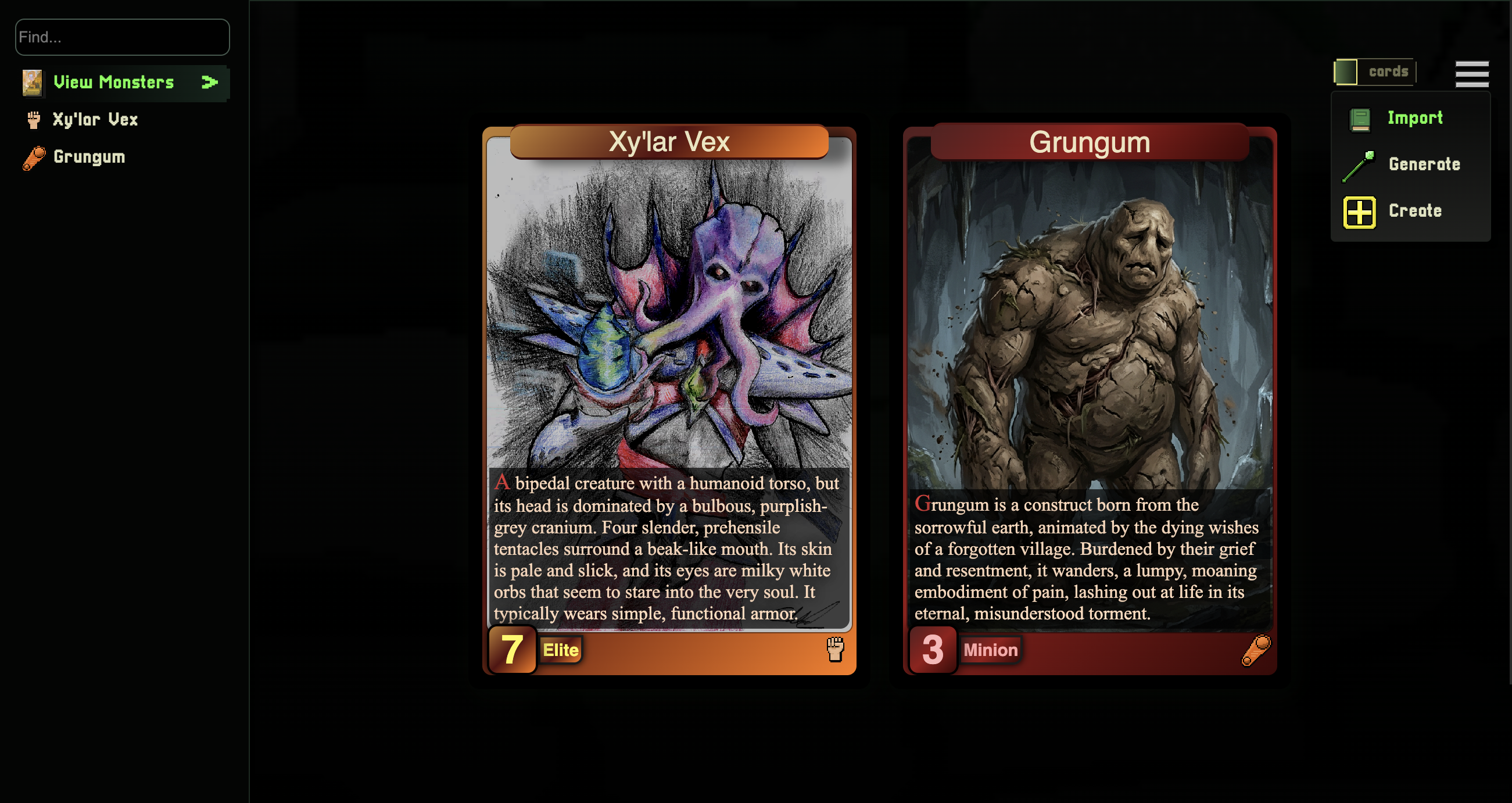
To import the monster that I just imported into my library into my campaign, I go to Get Started/Monsters/View Monsters And select import from the hamburger menu
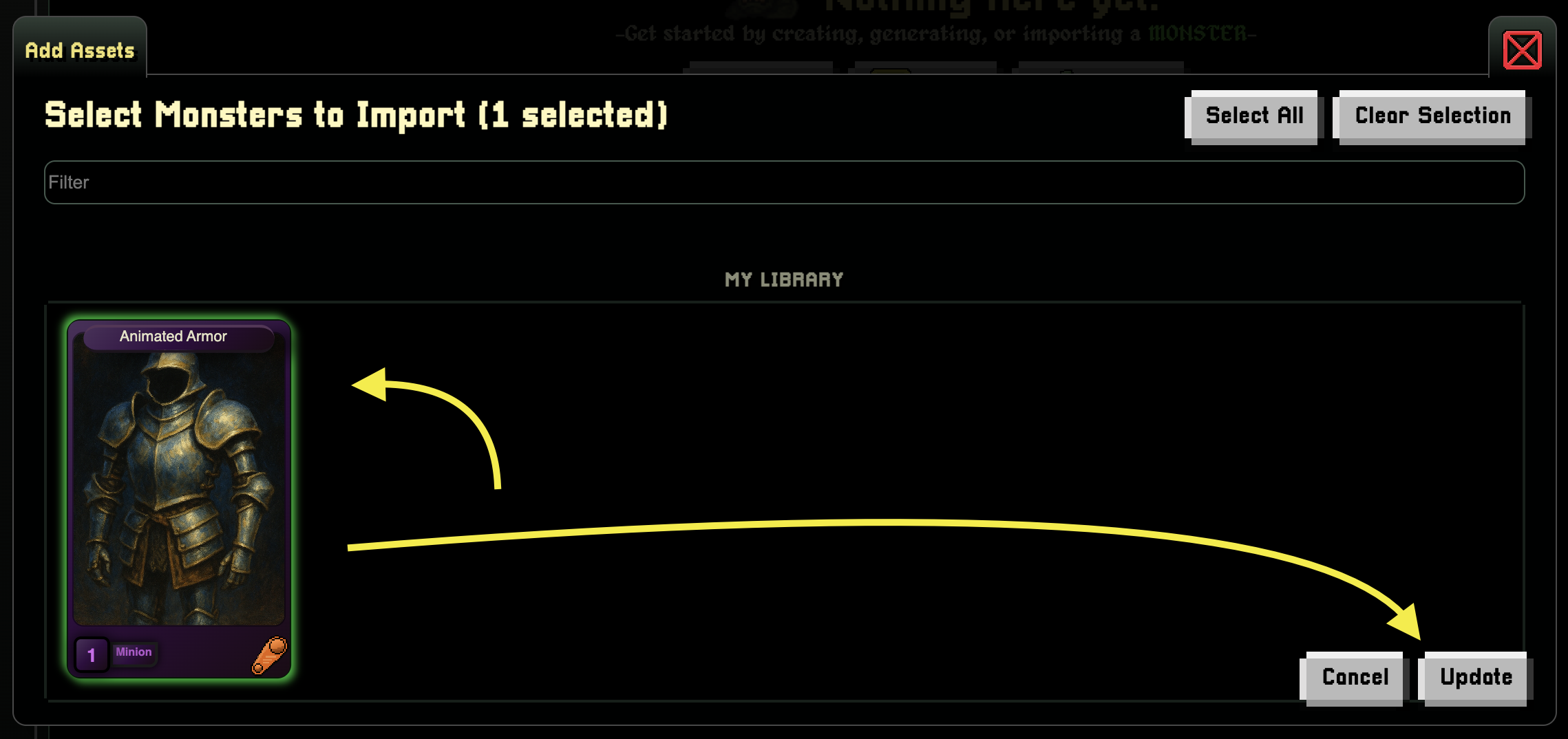
This works with all Game Assets