Making a Map
This guide walks through how to create a map in World Wizard and connect it to the locations, encounters, and lore already in your campaign.
Before You Start
1. Make sure you have an active campaign
2. Have at least one Location created, or be ready to create one alongside the map
3. Decide what the map represents: a world overview, a region, a city, a dungeon, or a specific building
Create a Map
Maps are created from the Campaign section of the sidebar.
1. Open your active campaign
2. Navigate to Maps
3. Click New Map
4. Give the map a name that reflects its scope

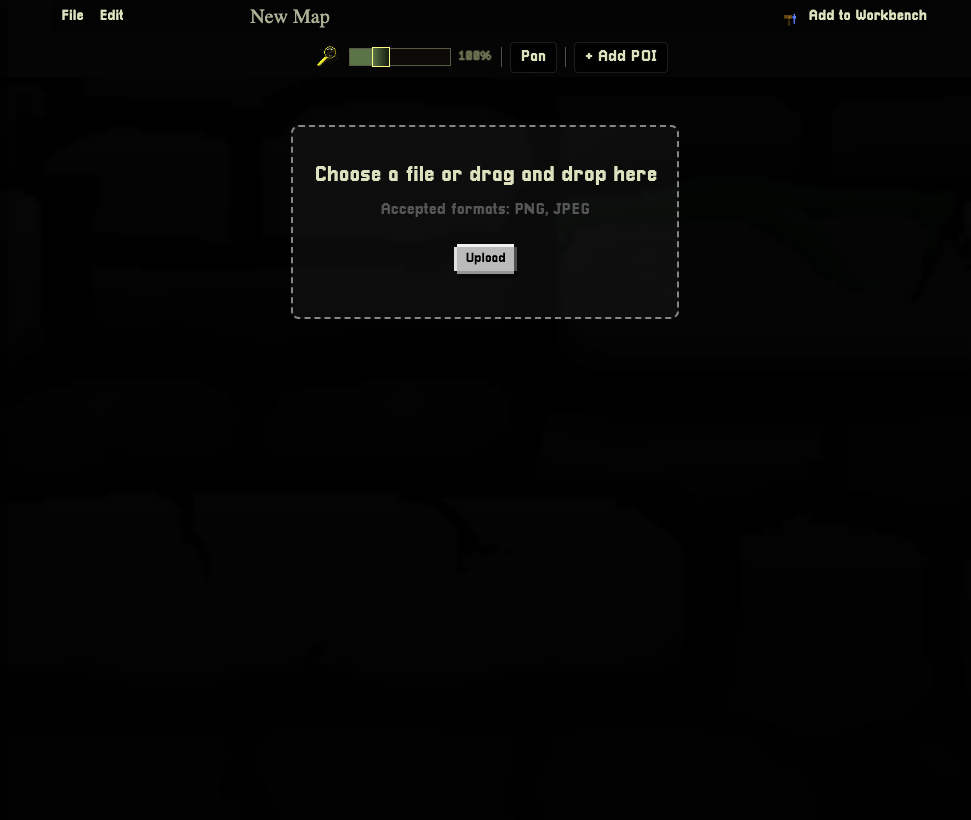
Upload Your Map
1. Click Upload
2. Select a file from your device
3. The image will be placed as the map background
Supported formats include PNG, JPG, and WebP.
Add Pins to the Map
Pins mark specific points of interest on the map. Each pin can be linked to a campaign asset.
1. Click anywhere on the map to place a pin
2. Give the pin a label
3. Optionally link the pin to an existing Location, NPC, Monster, Quest, or other asset
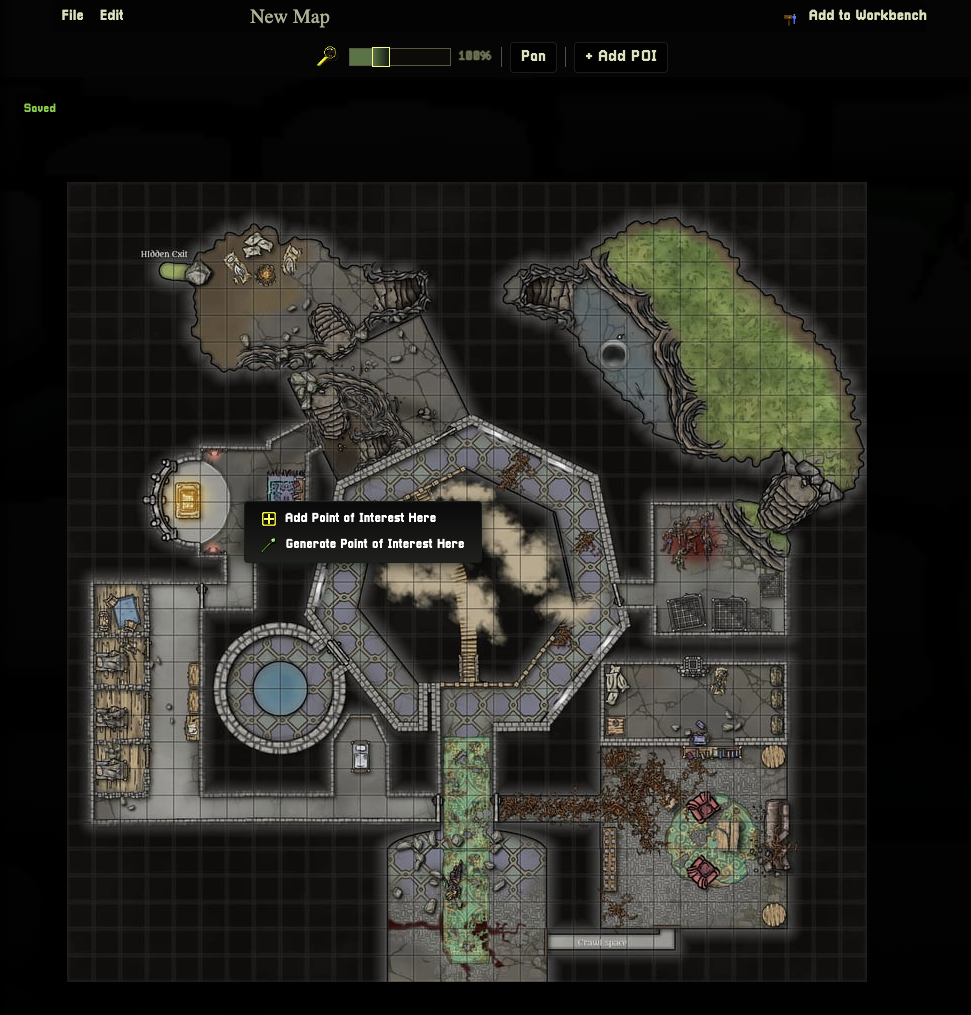
Linking a pin to an asset means clicking that pin during a session will open the full asset details directly.
Creating a Point of Interest
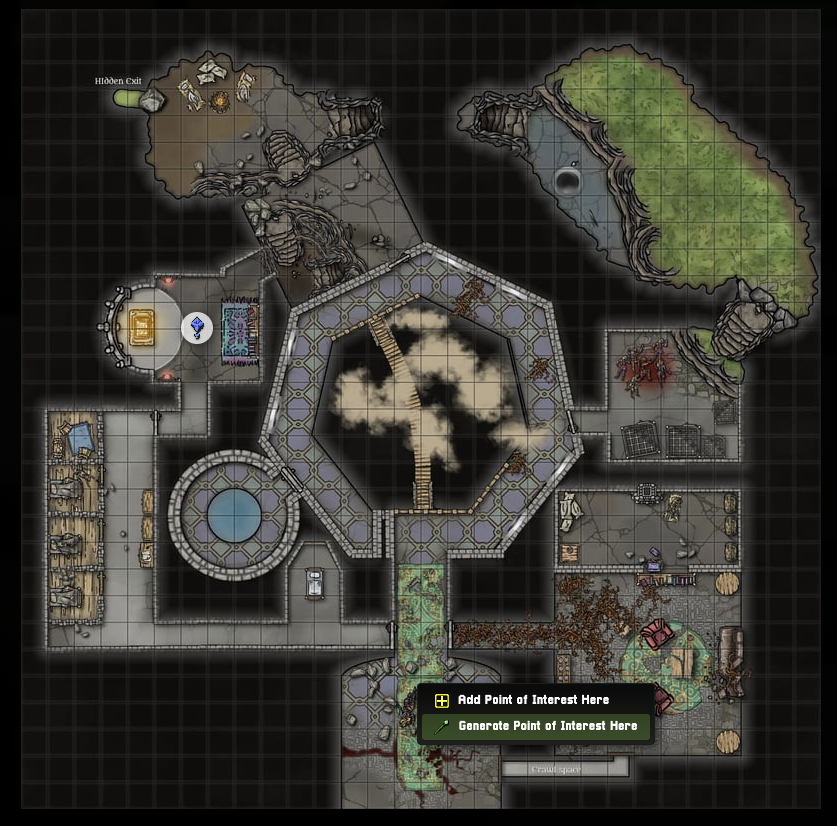
Clicking, Add Point of Interest Here will open the POI (Point of interest) editor, which a manual entry form.
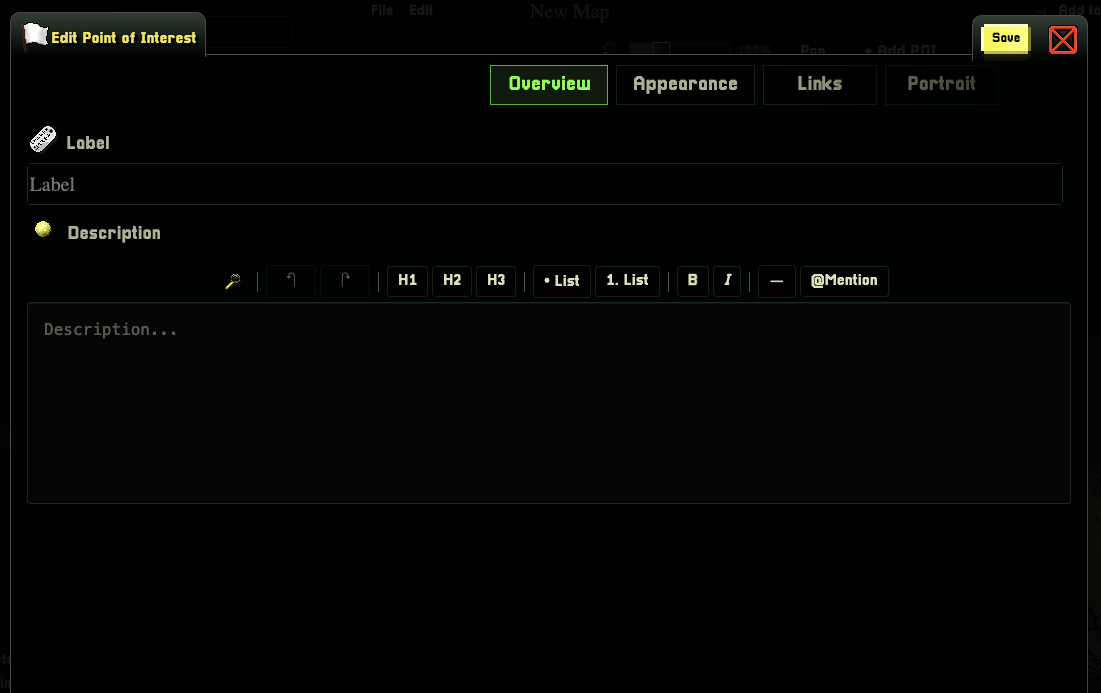
The POI Editor give you several options for customizing your POI.
Use the Description field as the main source of documentation for what this POI is about, and why it is important to your world.
Description boxes are used for context in World Wizard's Context Engine
Customize the appearance of your POI on the map in the Appearance container
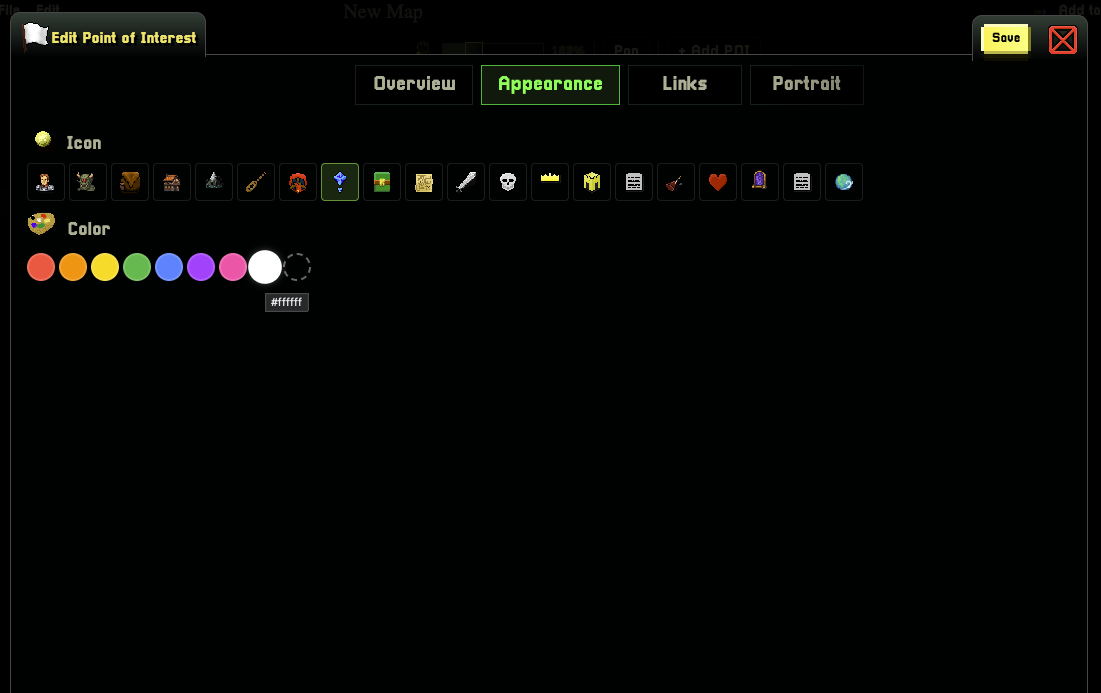
Use the Links tab like any other Game Asset In World Wizard
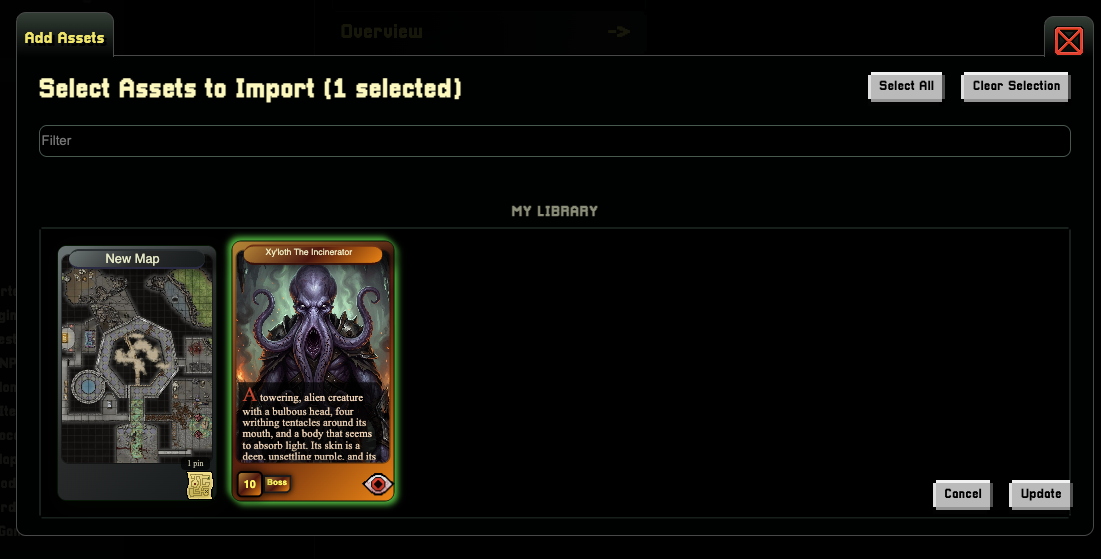
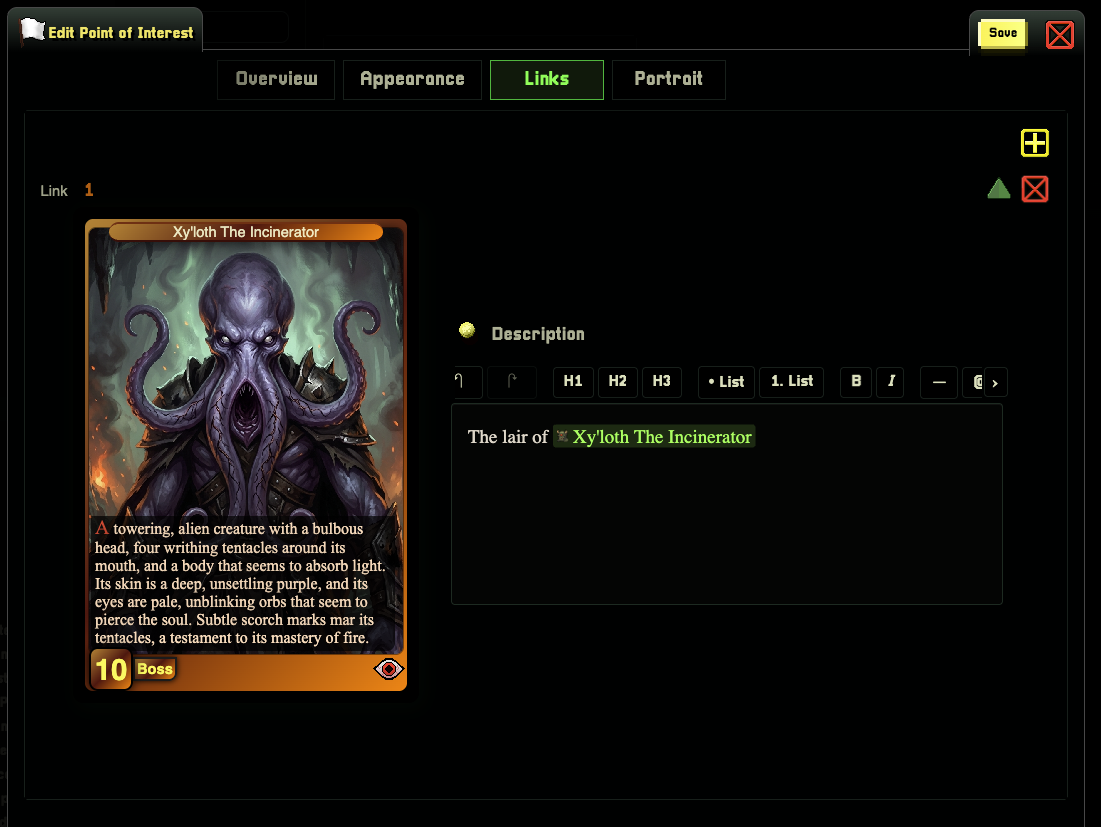
This example we added our monster to the POI and now you can easily find the monster and the context for what that specific room is used for in an adventure.
Generating Points of Interest
Clicking, Generate Point of Interest Here will open the POI generator form.
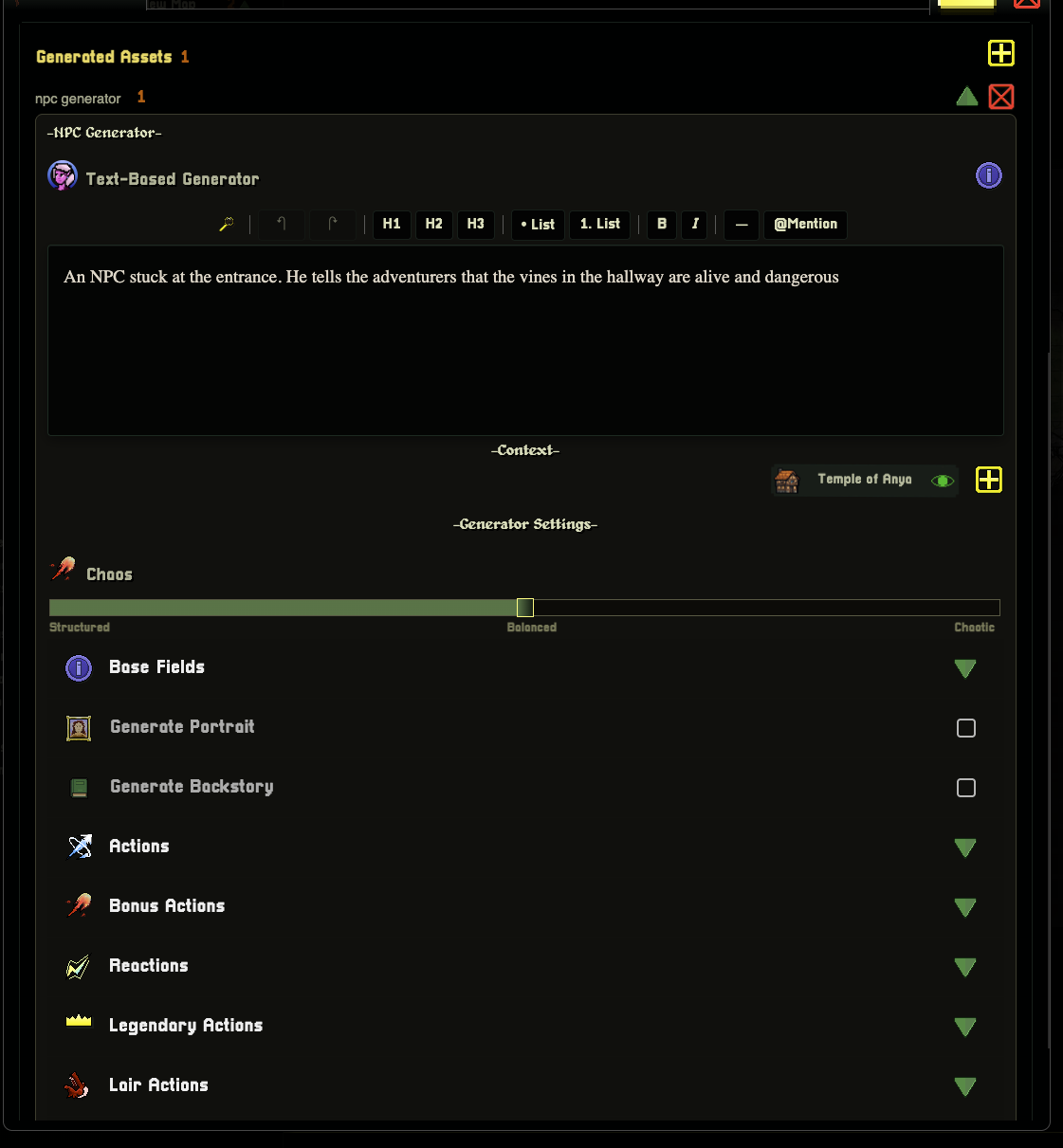
In the prompt you can add whatever you want, including any @mentions to other game assets within your campaign for context. (see the Context Engine)
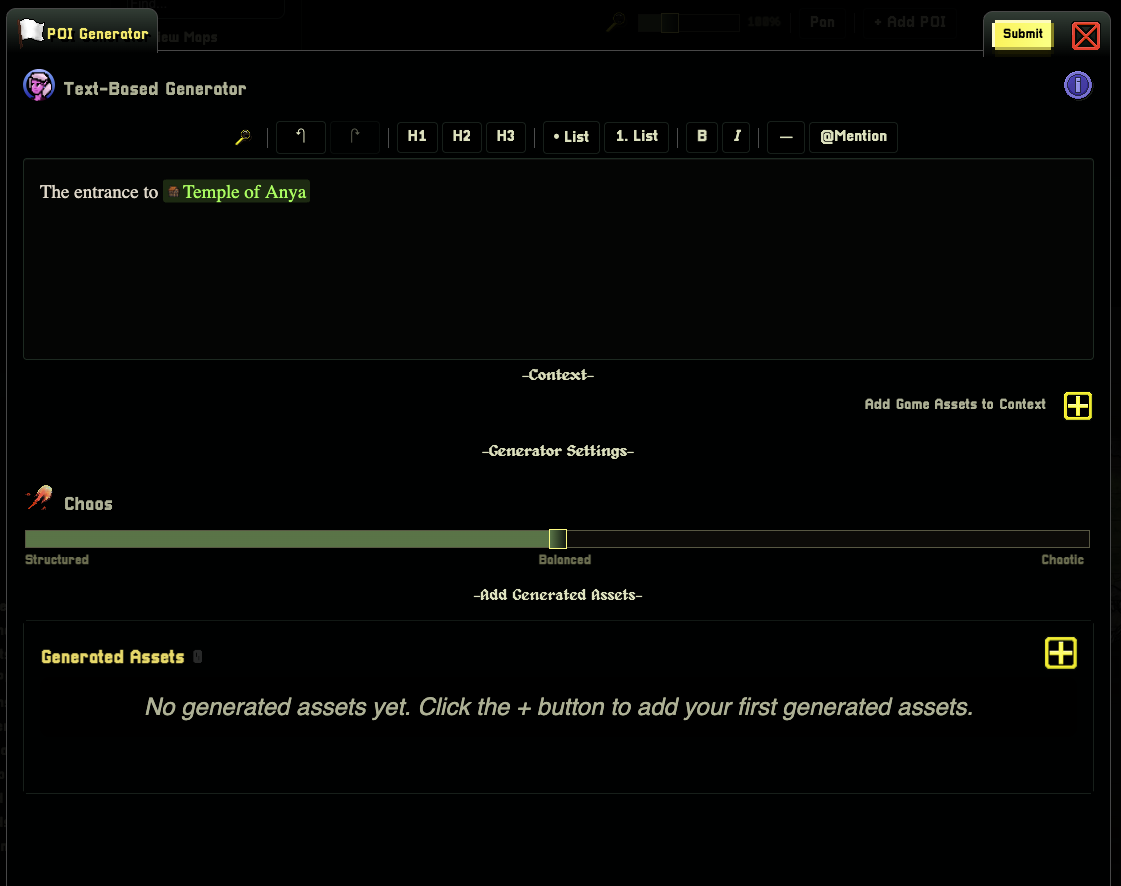
Generate supporting Game Assets by clicking the + button
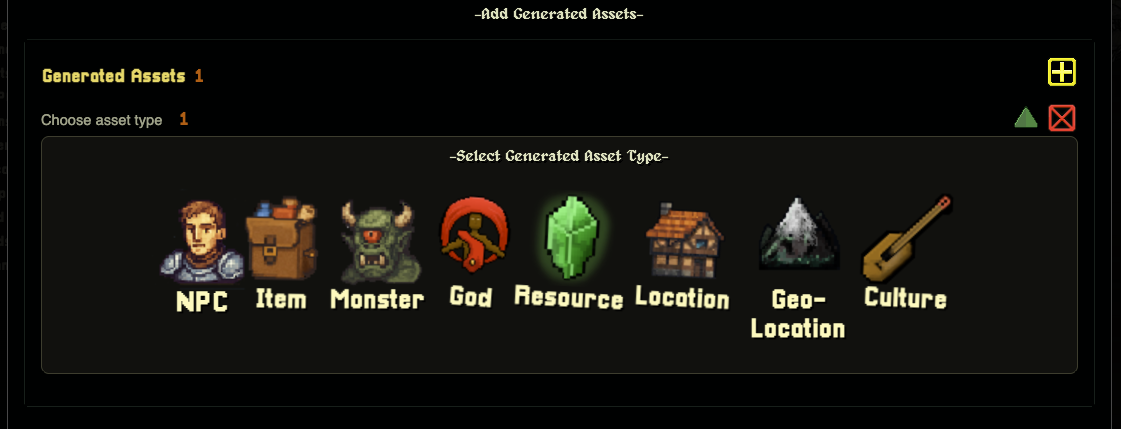
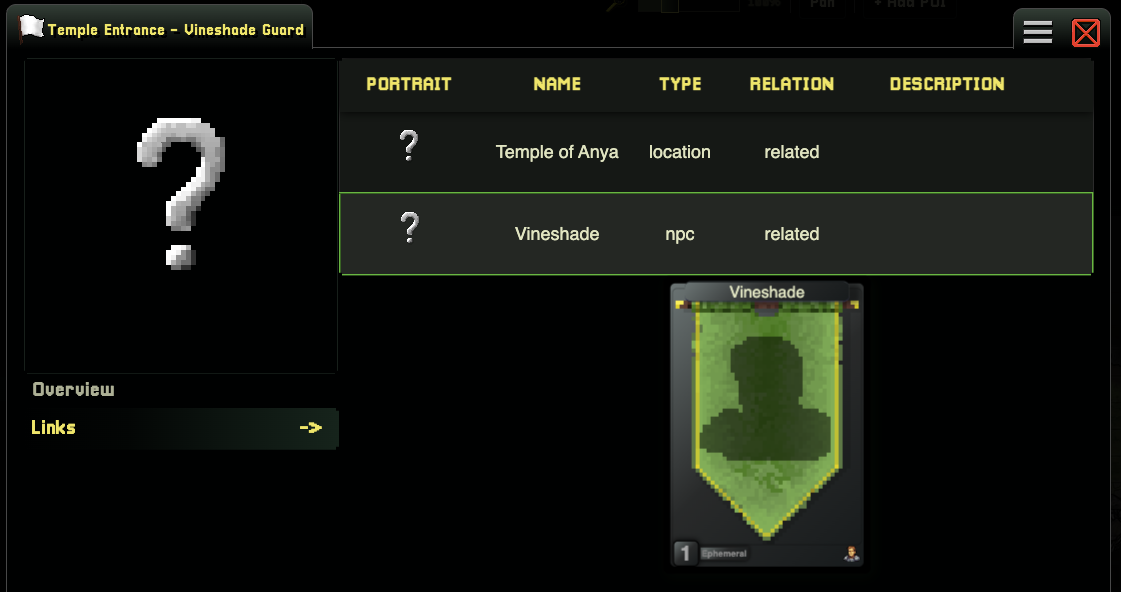
When selecting more Game Assets to generate in this configuration, the settings will be imported as normal for the Game Asset to be generated, and automatically linked to your POI
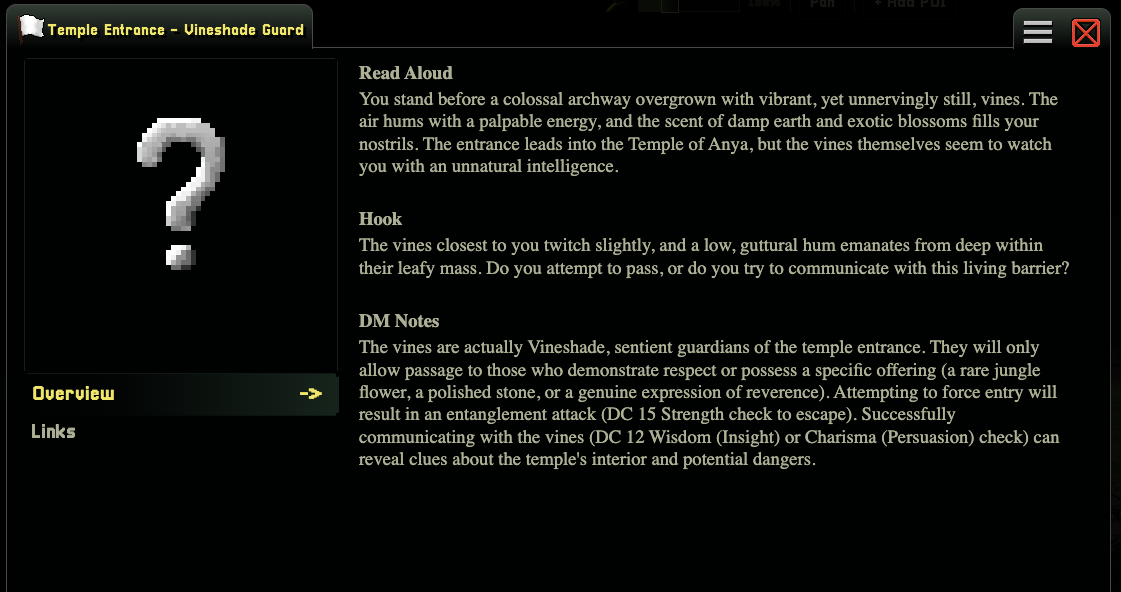
The resulting POI
Like all things in World Wizard, it's up to you to use your imagination for what awesome adventures your can build with these new tools!