How to Create and Manage Player Characters (PCs) in World Wizard
Player Characters (PCs) are the heroes controlled by players in your tabletop roleplaying game. In World Wizard, Game Masters (GMs) can easily build a PC from scratch, auto-generate character drafts with AI, share a campaign invite link, or send email invitations directly to players.
Getting Started on the Playing Page
To begin managing or creating characters:
1. Select Playing in the main sidebar menu.
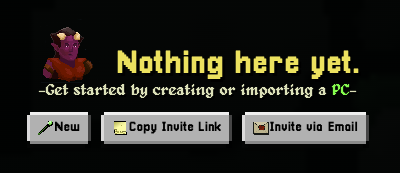
2. If your campaign does not have any Player Characters yet, you will be presented with three setup options: New, Copy Invite Link, and Invite via Email.
Option 1: Create a Player Character Yourself
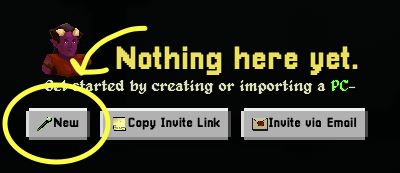
Select New if you want to build, customize, and manage a Player Character directly from your GM account.
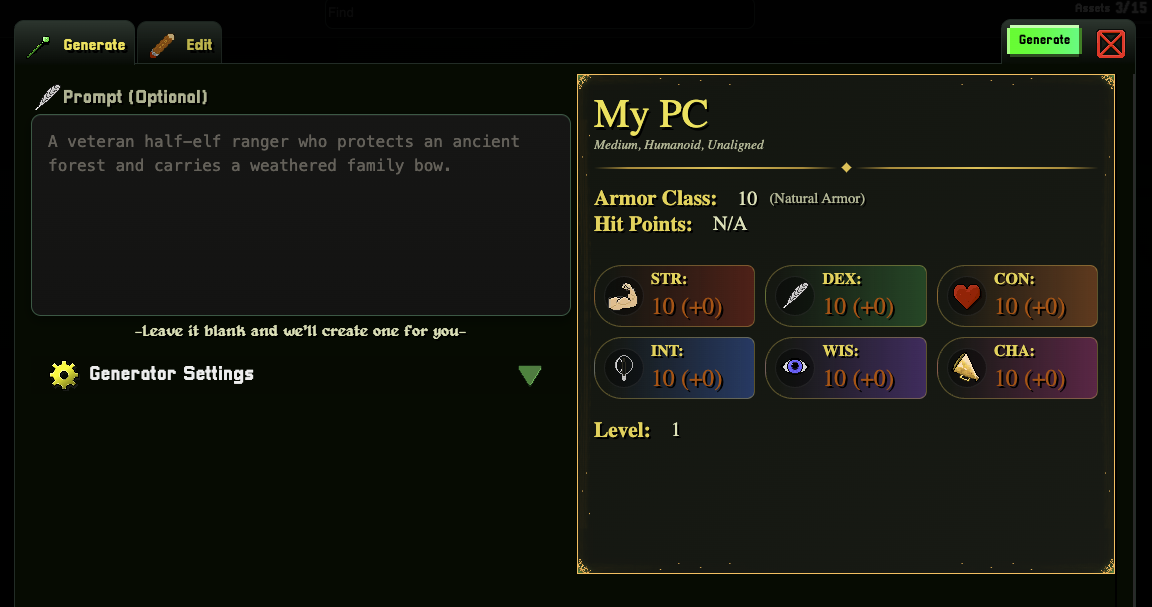
The Player Character Builder provides two distinct workflow options:
• Generate (AI Character Builder): Enter a short description or prompt to let World Wizard build an instant starting character draft.
• Edit (Manual Setup): Manually input, adjust, and fine-tune stats, attributes, and background details.
How to Use the AI Character Generator
1. Enter a concept prompt if you already have a character idea (e.g., "An exiled elven rogue seeking redemption").
2. Review your generator settings.
3. Click Generate. (Note: You can also leave the prompt blank to generate a fully randomized character).
Pro-Tip: Treat generated characters as editable foundations. Use the Edit tab to adjust abilities, stats, personality traits, inventory items, lore, plot points, and character hooks prior to your first session.
Already have a character in D&D Beyond? Copy the character sheet's details from D&D Beyond and paste them into the prompt. World Wizard can use that information to generate a matching PC draft, which you can then review and refine in the Edit tab.
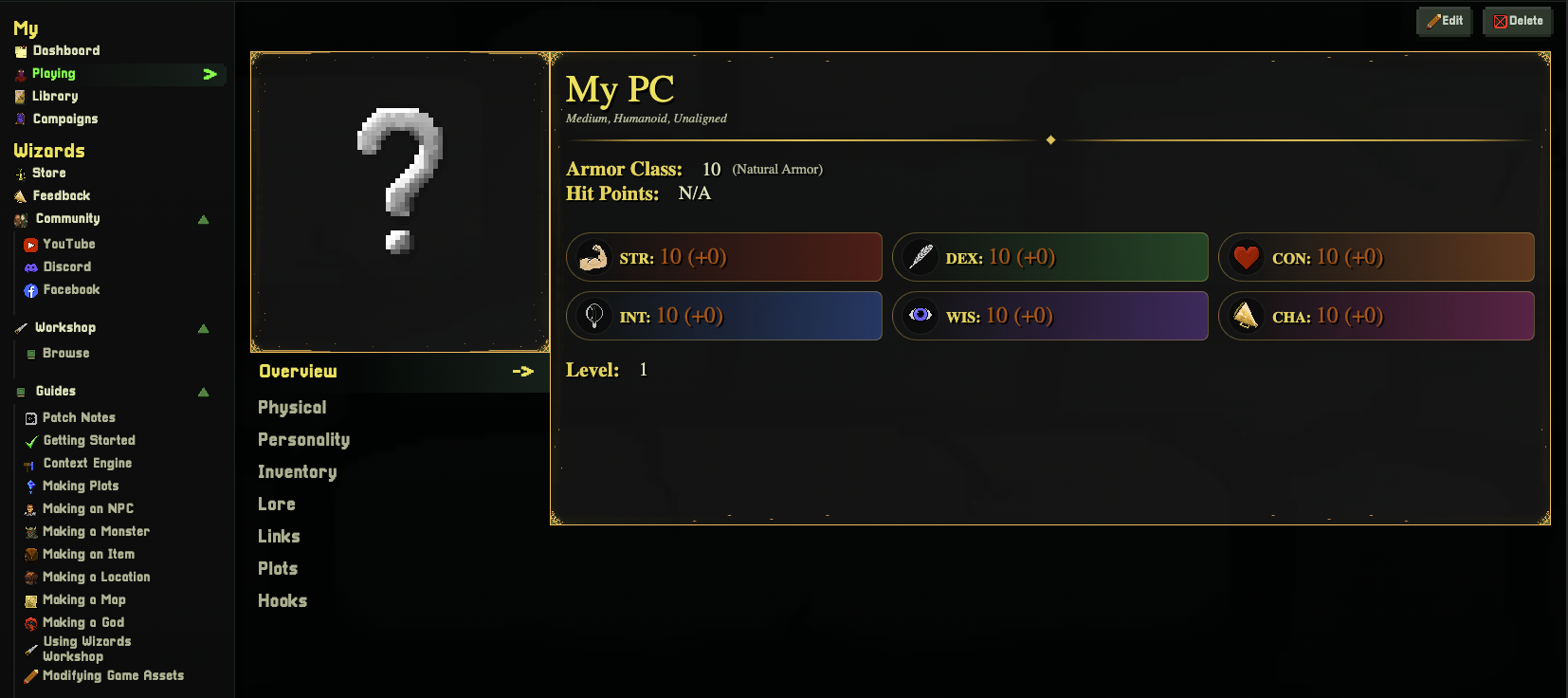
Once saved, your new PC will appear under the Playing dashboard section. Click on the character to open their full interactive character sheet, or select Edit to make ongoing changes.
Option 2: Invite a Player via Shareable Link
Choose Copy Invite Link to generate a reusable campaign invitation link copied directly to your clipboard.
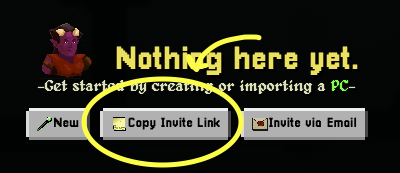
Step-by-Step Link Setup
1. Copy the campaign invite link.
2. Send the link to your player via Discord, Slack, or your preferred messaging app.
3. When opened, the player lands on a dedicated Campaign Welcome Page where they can join for free.
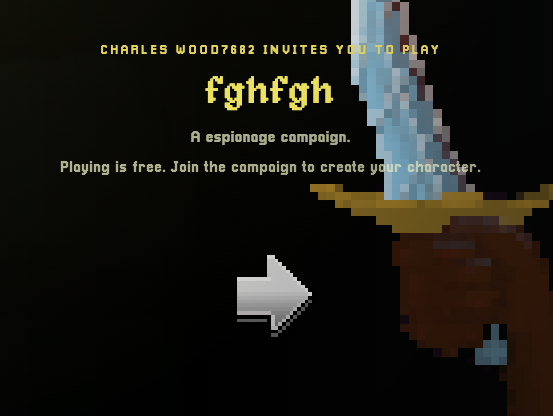
4. After signing in or creating a free account, World Wizard automatically prompts the player to create their Player Character.
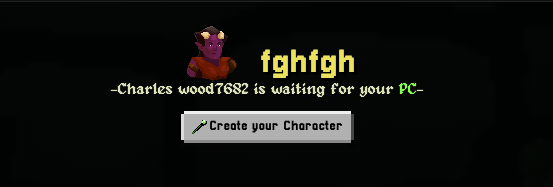
Option 3: Invite a Player via Email
Select Invite via Email to send direct campaign invitations right from World Wizard.
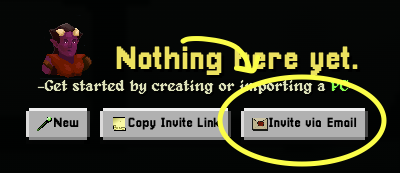
1. Enter your player's email address into the invitation modal window.
2. Click Send.
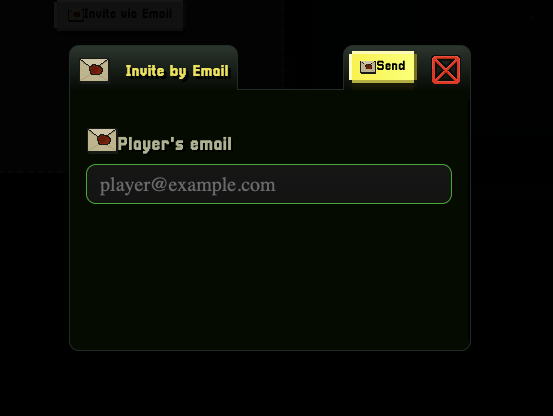
3. Your player receives an email with a direct campaign link. Once they sign in or create a free account, they can start building their character.
Note for GMs: Players can join campaigns and build their character sheets completely free of charge. Ensure you generate and send the invitation for the correct campaign before sharing.
Next Steps: Managing Player Characters During Play
Once a character is created, it instantly populates under the Playing section of your campaign dashboard.
• View Character Sheet: Click the character's name to open their live sheet during session play.
• Update & Level Up: Use the Edit button whenever a character gains experience, levels up, acquires new inventory items, or updates their backstory hooks.
Connect Player Characters to Your World
Player Characters can now be used as context when generating Worlds and other Game Assets. Add a PC to your context when you want World Wizard to create locations, factions, quests, NPCs, or lore connected to that character's background, relationships, goals, and adventures.
Try this: Add one or more PCs as context before generating a World. World Wizard can use their stories to create a setting in which the players already have meaningful connections.
Learn how to use the Context Engine →